The iPhone has no private mode for the Camera app: every photo it takes is saved to your library and, with iCloud Photos on, uploaded and synced. To keep a photo out of the camera roll entirely, take it with a camera inside another app that stores the picture itself, ideally an encrypted vault that never hands it to Photos.
Hiding or deleting the photo afterwards helps, but by then it may already be in iCloud, on your other devices and in a Memory. Here's why, and what to use instead.
Where a normal photo goes in the first minute
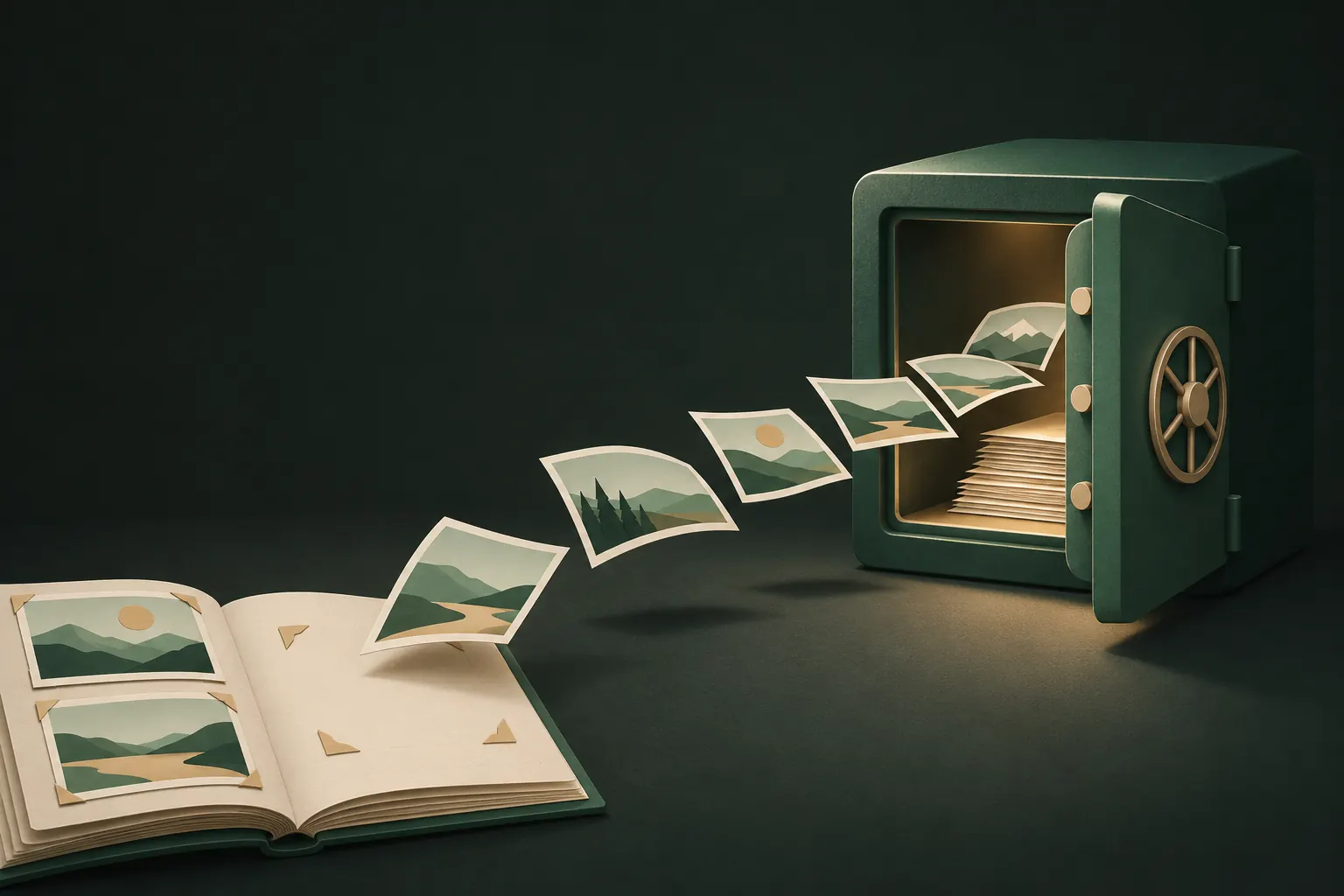
When you press the shutter in the Camera app, the photo is written to your photo library straight away. From there:
- iCloud Photos uploads it when your phone has a connection, and it appears on your iPad, Mac and any other device signed in to your Apple Account.
- An iCloud Shared Photo Library, if you use one, can be set to receive photos from the Camera automatically, which means other family members see them too.
- Location is saved with the photo if the Camera has location access (Settings → Privacy & Security → Location Services → Camera).
- The Photos app analyzes it on your device so it can show up in search, Memories, featured photos and the Photos widget.
None of this is a problem for holiday pictures. It is a problem for a photo of your passport, a medical document, or something intimate.
Why hiding afterwards is too late
Moving a photo to the Hidden album or deleting it is a good habit, but it doesn't rewind what already happened.
- The cloud copy. If iCloud Photos uploaded the photo before you hid it, the hidden photo stays in iCloud, and in the Hidden album on your other devices. With standard data protection, Apple holds the keys to iCloud Photos; Advanced Data Protection makes it end-to-end encrypted.
- Shared libraries. A photo that went to a Shared Library is already visible to the other members.
- Deletion isn't instant. A deleted photo sits in Recently Deleted for 30 days unless you empty it.
- Other places it showed up. A widget or Memory may have displayed it before you got to it.
Keeping photos out of Memories and search after the fact is possible; see keeping photos out of Memories and search. But for sensitive shots, it's far simpler to never put them in the library at all.
Option 1: a vault with its own camera
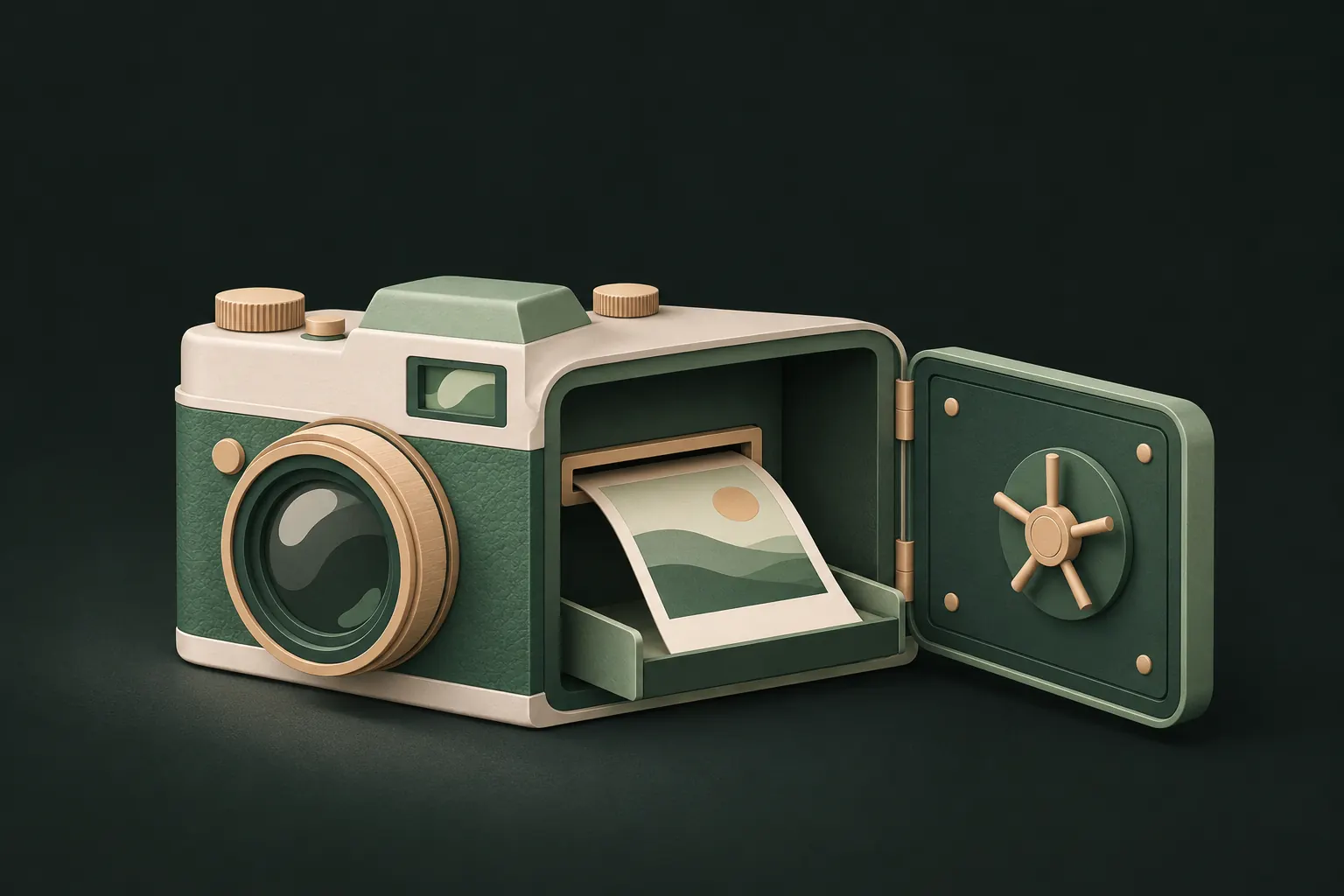
A vault app with a built-in camera takes the photo and saves it straight into the vault, without the photo library ever being involved. That's the cleanest option, if the app is built well.
What to check:
- It truly bypasses Photos. The photo should never appear in your library, even briefly.
- It encrypts on capture. The photo should be encrypted as it's saved, not left as a plain file inside the app.
- It doesn't add things you didn't want, such as location.
- It handles video too, if you need it.
Because the camera lives inside the vault, you have to unlock a vault first; there's no shortcut from the Lock Screen. That's a deliberate trade: the photo always lands in a vault you've opened.
Option 2: Notes and other apps with a camera
Apple's Notes app can take photos and scan documents inside a note.
- Scans made with Scan Documents are saved in the note, not in Photos.
- Photos and videos taken from inside a note stay in the note too, unless the Notes setting that also saves them to Photos is on. Check it in Settings → Apps → Notes.
- Lock the note if the content is sensitive. Locked notes are encrypted and need your Notes password or your device passcode.
The catch: anyone who knows your passcode may be able to open locked notes, and notes sync through iCloud like everything else in Notes. It's a fair option for an occasional receipt or document. For anything you'd be upset to see leaked, a vault with its own secret is stronger.
Messaging apps that save photos to the library
Many apps have a camera, and many save what you shoot or receive to your library by default or with one setting.
- Chat apps often have a "save to Photos" or "save to camera roll" option for incoming media. In WhatsApp, for example, it's in the app's chat settings. Turn it off if you receive sensitive photos.
- Social apps may save photos and stories you take in the app to your camera roll. Check their camera or archive settings.
- Messages doesn't add received photos to your library automatically, but they can appear in the Shared with You section of Photos.
If you take a photo in a chat app just to send it, assume a copy may stay in the chat and on the other person's phone, regardless of your settings.

Screenshots are photos too
A screenshot is saved to your photo library just like a picture from the Camera app, with the same trip to iCloud Photos. That catches people out: a screenshot of a bank message, a private chat or a boarding pass with your passport number is now in your library and probably in the cloud.
- Avoid screenshots of sensitive content where you can. Save a document as a PDF to Files, or into a vault, instead.
- Delete and empty Recently Deleted when you do take one.
- Watch for screenshots of your vault. Private Vault hides its content from screenshots, screen recordings and mirroring, so a capture shows a blank screen and nothing private lands in your library by accident.
Checklist for sensitive shots
Before you photograph an ID, a document or something private:
- Use a camera that doesn't write to Photos, such as a vault camera or Notes.
- If you've already used the Camera app, move the photo to a vault, delete it from Photos and empty Recently Deleted. See moving photos into a vault and removing every original.
- Check what got synced. If iCloud Photos was on, make sure the photo is gone from your other devices too.
- Mind the location. A photo taken at home can reveal your address. Check that location is off for whatever camera you use.
- Watch for screenshots of the photo. A screenshot is a new photo in your library.
- Think about where documents should live long term. For passports, IDs and records, see storing sensitive documents on iPhone.
Questions
Does the iPhone have a private camera mode?
No. Every photo taken with the Camera app is saved to your photo library. To skip it, take the photo inside another app that stores it itself, such as Notes or a vault app with its own camera.
Do photos taken in other apps go to Photos?
It depends on the app. Notes keeps photos and scans inside the note unless you turn on its Save to Photos setting. Many messaging and social apps have their own option to save to your library.
Does a vault camera keep location data?
Only if the app has location access. Private Vault never asks for location access, so photos from its camera carry no GPS coordinates.
Can I use the vault camera from the Lock Screen?
Not with Private Vault. Its camera opens from inside an unlocked vault, so the photo goes straight into that vault.
Keep it private on your iPhone
No account. No analytics. Encrypted on your iPhone.