Keep sensitive documents out of your camera roll, and behind a secret that isn't your iPhone passcode. Scan with Notes or Files instead of the Camera so no copy lands in Photos, then store the result in a locked note (for a few scans) or an encrypted vault app (for PDFs and lots of files). Use the Passwords app for passwords and paper for crypto seed phrases.
What counts as sensitive, and who'd want it
A good test: would you mind if a stranger, an ex or a nosy relative held this document for five minutes?
- Identity: passport, ID card, driving licence, residence permit, birth certificate.
- Money: tax returns, payslips, bank statements, contracts, cards.
- Health: test results, prescriptions, insurance letters, therapy notes.
- Legal and family: custody papers, court letters, immigration documents.
The risks are different from private photos. An ID scan is ideal for identity fraud: opening accounts, taking out loans, verifying a SIM swap. Medical and legal papers are more about who in your life might see them. Both deserve better than a camera roll that syncs everywhere and shows up in Memories.
Scan without saving to Photos
The most common mistake is photographing a document with the Camera app. That copy sits in your library, syncs through iCloud Photos, and can be read by any app with Full Access to your photos.
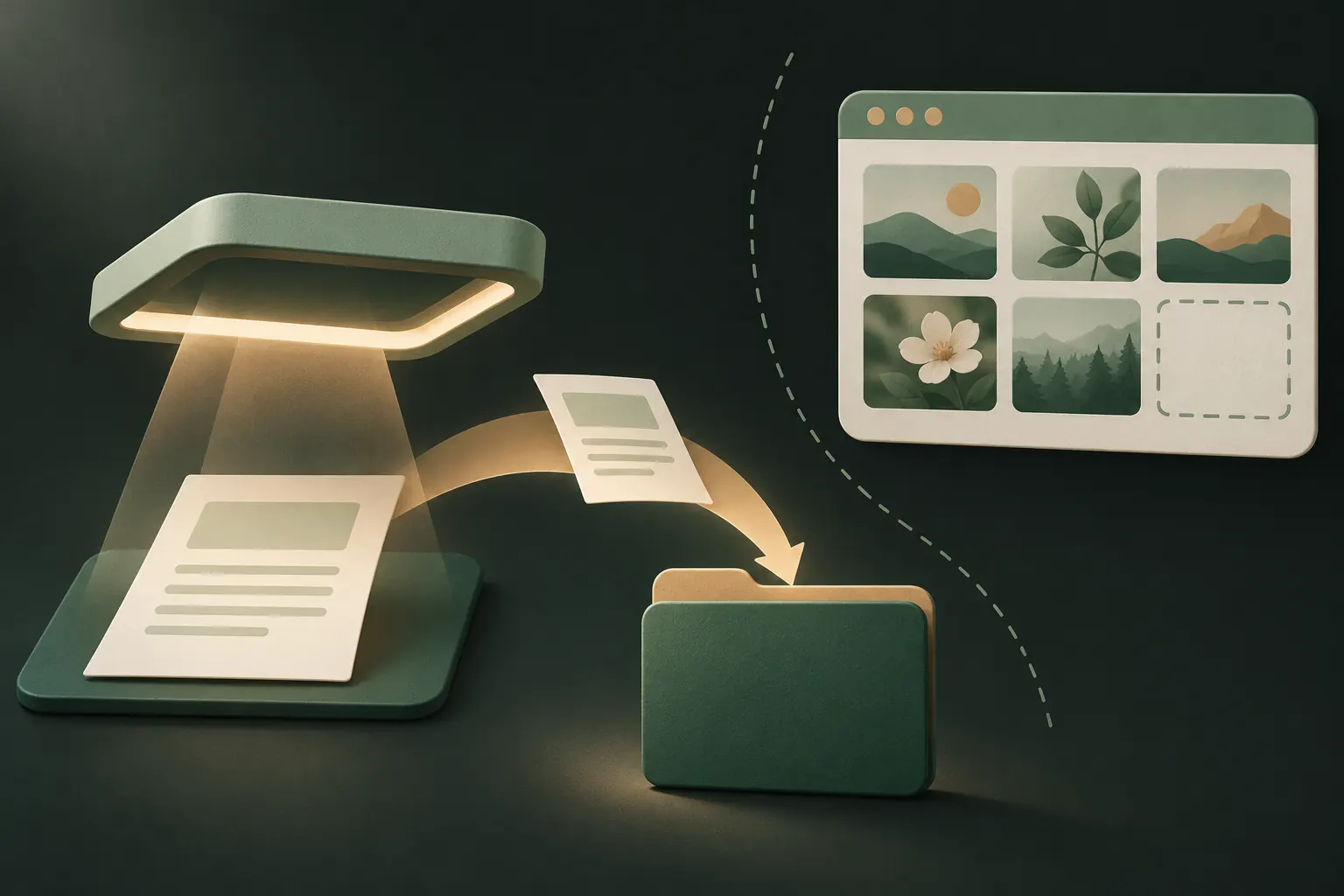
Scan with a document scanner instead. Apple describes both options in How to scan documents on your iPhone or iPad:
In Notes
- Open Notes and create a note.
- Tap the camera or attachment button (or the More button) and choose Scan Documents.
- Hold the page in view; the scan captures automatically. Tap Save.
The scan stays inside that note. It doesn't go to Photos.
In Files
- Open Files and go to the folder you want.
- Tap the More button, then Scan Documents.
- Scan and save. You get a PDF in that folder.
Files scans are tidy PDFs, but Files itself has no lock. Anyone who can open your iPhone can open the folder.
Files app and iCloud Drive: useful, with limits
Files is a fine place to organise documents. It isn't a place to hide them:
- There's no password or Face ID on the Files app or its folders.
- Files on iCloud Drive sync to every device signed in with your Apple Account.
- With standard data protection, iCloud Drive is encrypted in transit and on Apple's servers, but Apple holds the keys. With Advanced Data Protection turned on, iCloud Drive becomes end-to-end encrypted. Apple lists which data is covered in its iCloud data security overview.
Turning on Advanced Data Protection is a good idea for most people who can manage the recovery key or contacts it requires. It protects what's in the cloud; it doesn't stop someone who has your unlocked phone.
Locked Notes and Wallet
Locked notes
A locked note needs your iPhone passcode or a separate Notes password to open, and its content is encrypted. Good for:
- A few scanned pages (Notes scans can be locked).
- Short text: insurance numbers, a door code, a medical summary.
Limits worth knowing:
- If you lock notes with your device passcode, anyone who knows the passcode can open them. A separate Notes password is stronger.
- Apple doesn't let you lock notes that contain PDFs, audio, video or Pages, Numbers or Keynote files, or notes shared with collaborators.
- Locked notes are fine for a handful of items, awkward for a whole folder of tax years.
We compare them with vaults in detail in iPhone Notes lock vs a vault.
Wallet
Apple Wallet can hold some official IDs: driver's licences and state IDs in participating US states, and in the US a Digital ID created from your passport. These are designed for presenting identity, not storing documents, and availability depends on where you live. If yours is supported, it's a good place for the ID itself, but you'll still want a copy of the document elsewhere.
An encrypted vault for documents
For PDFs, many files, or documents you want behind a separate secret, a vault app that encrypts each file is the most complete option. What to look for:
- Real encryption with a key that comes from your secret, not just a PIN screen.
- A separate secret from your iPhone passcode.
- Any file type, including PDFs, and a built-in viewer, so you don't export documents to read them.
- A recovery plan that doesn't depend on the company resetting your password.
- No account and no analytics if you'd rather not hand over an email to store your passport.
Seed phrases and passwords: use the right tool
Not everything sensitive is a document.
- Passwords and passkeys belong in a password manager. Apple's Passwords app is built in and syncs through iCloud Keychain, which is end-to-end encrypted. It also handles verification codes.
- Crypto seed phrases are different: whoever has them has the money. The usual advice from wallet makers is to keep them offline, on paper or metal, in a safe place. Never take a photo or screenshot of one; that copy ends up in your library and possibly iCloud. If you keep a digital backup at all, it should be encrypted with a strong, separate secret, and you should understand the risk.
- Your vault's own recovery phrase follows the same rule as a seed phrase: write it down, store it away from the phone. More in what a recovery phrase is.
Delete what you no longer need
The safest document is the one you don't have. Once or twice a year:
- Delete scans you only needed once: rental applications, old visa copies, expired IDs.
- Search Photos for "passport", "receipt" or "document". Photos recognises text, so stray scans turn up quickly. Move or delete them.
- Empty Recently Deleted in Photos and in Files.
- Check your email: attachments you sent yourself are often the copy everyone forgets.
Old documents are rarely useful to you and very useful to someone else.
A simple setup that works
- Daily ID: Wallet, if supported where you live.
- Passwords: the Passwords app.
- A few scans: a locked note with its own password.
- PDFs and everything else sensitive: an encrypted vault, separate from your passcode, for example by password-protecting photos and files.
- Seed phrases: paper, offline.
Questions
Is it safe to keep a passport photo on my phone?
It can be, if it isn't sitting in your camera roll. Keep it in a locked note or an encrypted vault, protected by a secret other than your passcode.
Is iCloud Drive encrypted?
Yes, in transit and on Apple's servers. With standard protection Apple holds the keys; with Advanced Data Protection on, iCloud Drive is end-to-end encrypted.
Can I password protect a PDF on iPhone?
The Files app has no password option. Some PDF apps can add one; a locked note can't hold PDFs, so an encrypted vault is the simpler place for them.
Where should I store a crypto seed phrase?
Offline, on paper or metal, kept somewhere safe. Never in Photos, a screenshot or an ordinary note.
Keep it private on your iPhone
No account. No analytics. Encrypted on your iPhone.