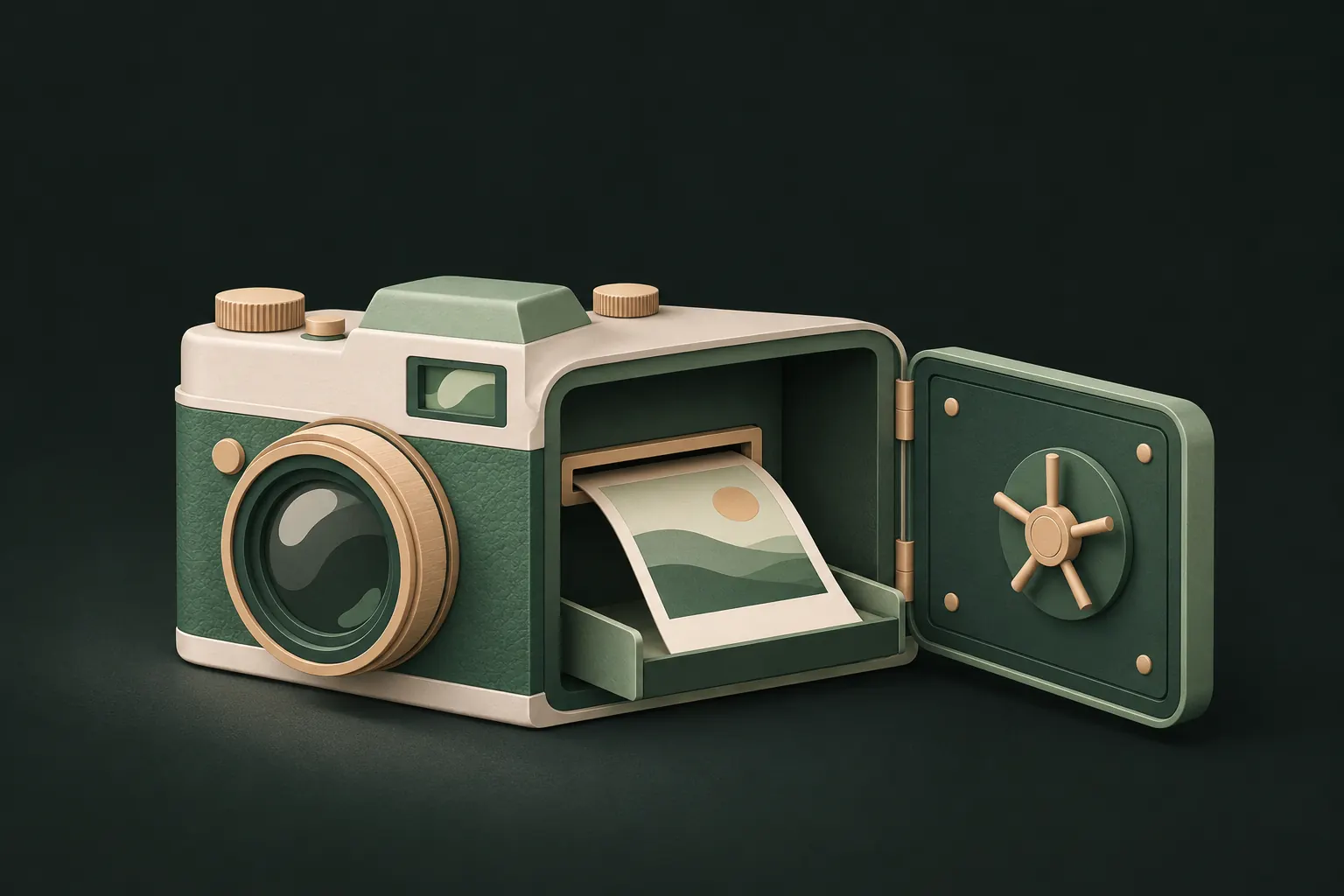
Importing photos into a vault app makes a copy; the originals stay in your library, in iCloud Photos and on your other devices until you delete them. To move photos properly: import them, check they open in the vault, delete the originals from Photos, then empty Recently Deleted. Finally, look for copies in chats and shared albums.
It takes a few extra minutes, and it's the difference between hiding a photo and actually moving it.
Why an import is a copy
On iPhone, apps can't reach into your photo library and quietly take files out of it. When you pick photos in a vault app, iOS hands the app a copy through the photo picker. The original stays exactly where it was.
Deleting the original is a separate action. It needs permission to change your library, and iOS asks you to confirm before anything is removed. That's a protection: no app can delete your photos without your say-so. It also means a vault that "imported" your photos hasn't hidden anything until the originals are gone.
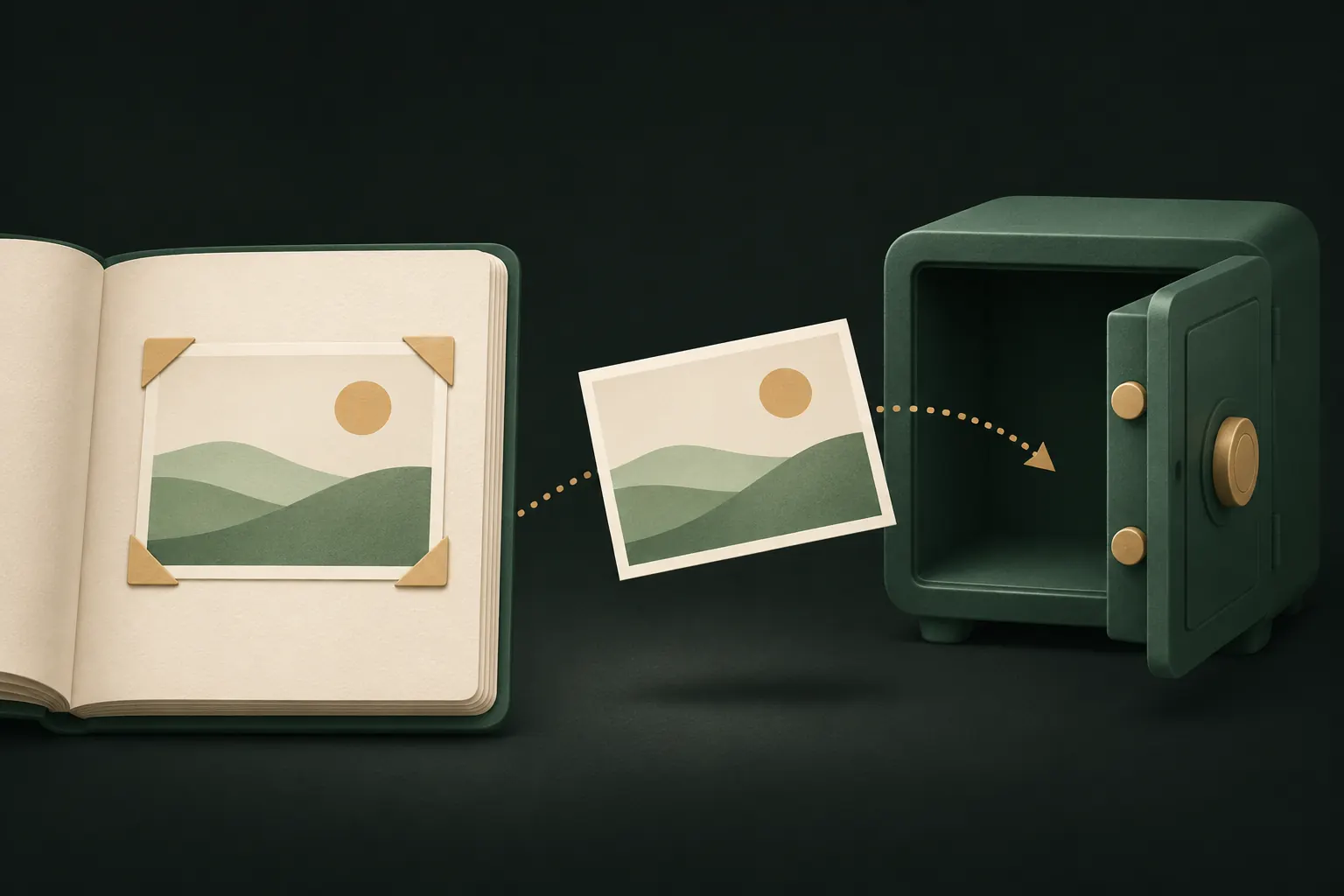
Step by step: import, verify, delete originals
- Import. In the vault app, choose import from your photo library and select the photos and videos.
- Wait for it to finish. Large videos take time to copy and encrypt. Keep the app open until the import is done.
- Verify. Open a few of the imported photos in the vault, play the videos to the end, and compare the number of items with what you selected.
- Delete the originals. Either let the vault app do it (it will ask for access to your library and iOS will ask you to confirm), or delete them yourself in Photos.
- Empty Recently Deleted. See the next section. This is the step most people skip.
- Check other copies in chats, shared albums and other devices.
A note on metadata: Private Vault stores imported files byte for byte, so location and camera details inside the photo come along. That's useful for keeping the original date, but if you plan to share a photo later, be aware the location is still in it.
Empty Recently Deleted (and why it matters)
When you delete a photo, Photos doesn't remove it right away. It moves it to Recently Deleted, where it stays for 30 days so you can recover it. During that time, it still exists on your iPhone and in iCloud Photos.
To empty it:
- Open Photos and scroll to Utilities.
- Tap Recently Deleted and unlock it with Face ID, Touch ID or your passcode.
- Tap Select, then delete all, or select just the photos you moved.
Recently Deleted is locked by default, which helps, but it opens with the same passcode as everything else. Apple explains the details in its guide to recovering deleted photos, which is also how you'd undo a mistake within the 30 days.
Copies elsewhere: other devices, chats and shared albums
Deleting from your library handles your library and iCloud Photos. Other copies live by their own rules.
- iCloud Photos on other devices. With iCloud Photos on, deleting a photo on your iPhone deletes it from your iPad and Mac too. If iCloud Photos is off on one of them, that device keeps its own copy: check it separately.
- Shared albums. A photo you added to a shared album is a separate copy. Deleting it from your library doesn't remove it from the album. Open the album and delete it there.
- An iCloud Shared Photo Library. Photos in a Shared Library can be seen and kept by other members. Remove them from the Shared Library, and remember others may already have saved them.
- Messages and chat apps. Photos you sent or received stay in those conversations. Some chat apps also save media to your library automatically; turn that setting off.
- Other clouds and computers. Google Photos, Dropbox, OneDrive or a computer you sync to can each hold their own copy.

Moving from another vault app
The same rules apply when you switch vault apps, with one extra step at the start.
- Export from the old vault to Photos or Files, using its export or unhide option.
- Check the count and open a few files, especially videos.
- Import into the new vault, then delete the exported copies from Photos and empty Recently Deleted.
- Delete the old app only at the end, once everything is confirmed in the new one. Deleting a vault app usually deletes everything inside it.
- Check the old app's cloud, if it had one, and delete that backup or account when you no longer need it.
Exported files are unencrypted for as long as they sit in your library, so do the whole move in one sitting.
Keep full quality on import
A vault should get the real original, not a smaller preview.
- Check iCloud's storage setting. If your iPhone uses Optimize iPhone Storage, full-resolution originals may be in iCloud rather than on the phone. The import may need to download them first. Do large imports on Wi-Fi and wait until they finish.
- Videos are the usual gap. Play a few imported videos all the way through before you delete the originals.
- Live Photos, edits and bursts can be handled differently by different apps. Spot-check them.
- Mind the free limits of the app you use. In Private Vault's free version, a vault holds 100 photos and 10 videos; anything over the limit isn't imported, so count before you delete.
Back up before you delete
Here's the uncomfortable part: once the originals are gone and Recently Deleted is empty, the vault is your only copy. If that vault exists only on your phone, losing the phone means losing the photos.
That might be what you want. Some people prefer no cloud copy at all. If not, set up a backup before deleting the originals, and make sure it can't be read by anyone else. In Private Vault, Encrypted iCloud backup is off by default and turned on per vault; files are encrypted before upload and restore only with the vault's recovery phrase.
Also worth knowing:
- Deleting the vault app deletes the vault. Read what happens when you delete a vault app before you ever do it.
- New private photos don't need this whole process if you take them inside the vault. A vault camera, like Private Vault's secure camera, skips the library entirely.
- Not sure a vault is right for you? Our overview of ways to hide photos on iPhone compares the Hidden album, locked apps and vaults.
Questions
Does deleting from my library also delete from iCloud?
Yes, if iCloud Photos is on. Deleting a photo on one device deletes it from iCloud and from your other devices that use iCloud Photos, after a stay in Recently Deleted.
How long do photos stay in Recently Deleted?
30 days, unless you empty it sooner. After that, Photos deletes them permanently.
Do photos keep their original date in the vault?
In Private Vault, yes: photos imported from your library keep the date they were taken. The file itself is stored byte for byte, so its metadata, including location, stays too.
Can I undo deleting the originals?
For 30 days, yes: open Recently Deleted in Photos and recover them. Once Recently Deleted is emptied, the copy in the vault is the only one left.
Keep it private on your iPhone
No account. No analytics. Encrypted on your iPhone.