Yes, in almost every case. A vault app keeps your photos inside its own storage on the iPhone, and when you delete the app, iOS deletes that storage with it. What can survive is a backup the app made to your iCloud, and only if it was turned on before you deleted the app.
If you haven't deleted the app yet, stop here and read the export section first. If you already have, skip to the last section.
Short answer: the local vault goes with the app
On iPhone, every app gets its own private space for its files. That's part of what keeps apps from reading each other's data. A vault app stores your photos and videos in that space, usually encrypted.
When you delete an app, Apple's storage guide says it "removes the app and its related data from the device". There's no recycle bin for apps and no "Recently Deleted" for their files. The photos inside are gone from the phone.
This surprises people because the photos often came from their library in the first place. But if the vault app deleted the originals from Photos after import (as most offer to do), the vault was the only copy left.
Delete vs Offload App
iOS gives you two ways to remove an app, and they're very different for a vault.
- Delete App removes the app and its data. This is what happens when you remove an app from the Home Screen and confirm deletion.
- Offload App removes the app itself but, in Apple's words, "keeps its documents and data". The icon stays with a small cloud next to it, and reinstalling brings the app back with its data in place.
You'll find Offload App in Settings → General → iPhone Storage, then tap the app. There's also an option to offload unused apps automatically, which is worth knowing about: it offloads, it doesn't delete, so a vault app removed that way keeps its files.
If you need storage space and plan to come back to the app, offloading is the safe choice. If you want the app gone for good, export first and then delete.
What survives: the app's own iCloud backup
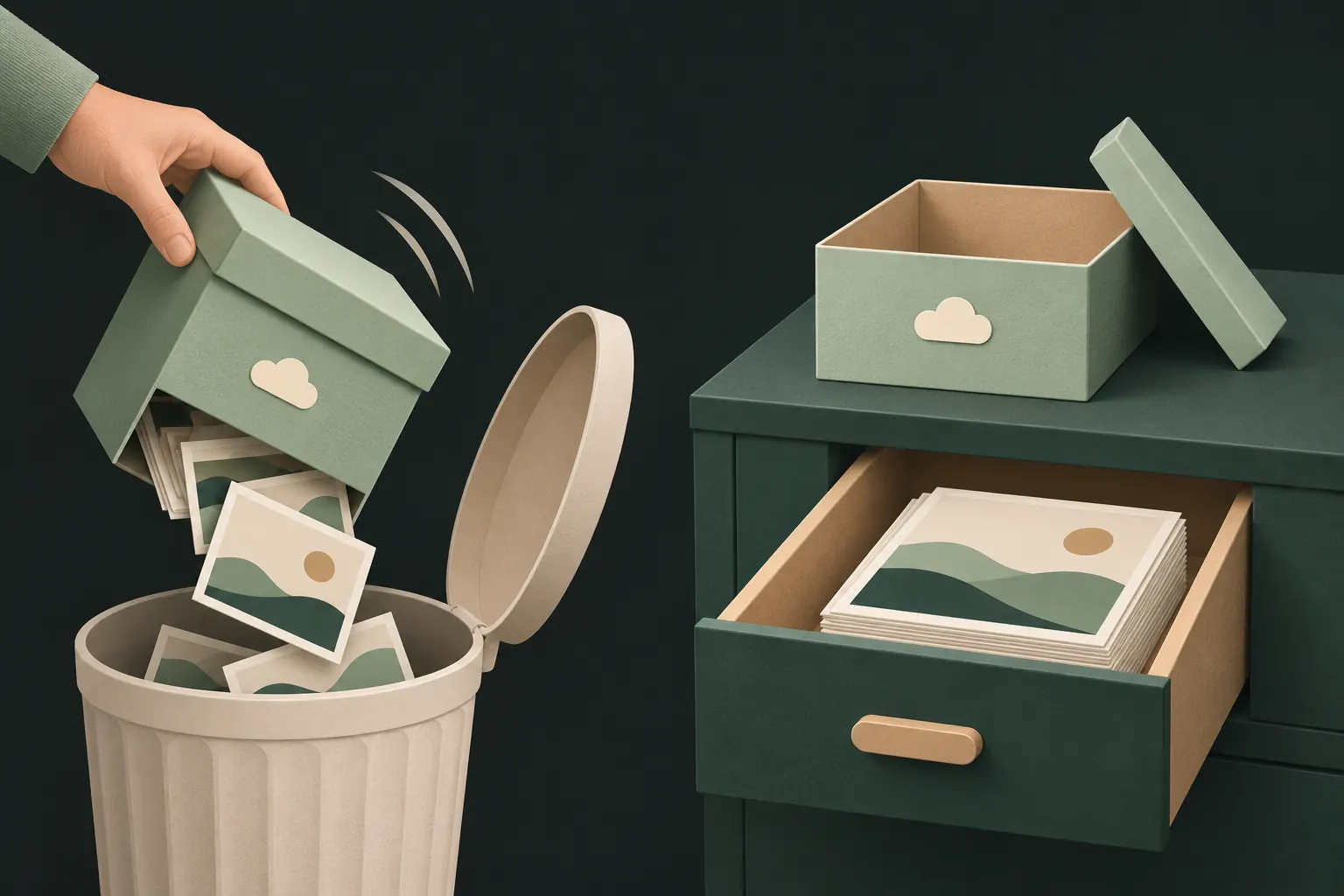
Some vault apps can back up your vault to iCloud or to their own servers. That copy lives outside the app's storage on the phone, so deleting the app doesn't touch it.
Things to know about those backups:
- It must have been turned on before. You can't create a backup after the app is deleted.
- It might not be complete. A backup that last ran weeks ago doesn't contain what you added since.
- You need the right key to restore it. That's typically your password, a recovery phrase or an account login, depending on the app.
- It still uses your iCloud storage. App data saved to your iCloud generally stays there after the app is removed, until you delete it in your iCloud storage settings. Don't clean it up while you still need it.
A regular iPhone backup is a different thing. Many encrypted vault apps exclude their files from iPhone backups on purpose, so restoring the whole phone may bring the app back without the vault. More on that in moving a vault to a new iPhone.
Reinstalling Private Vault and restoring with the recovery phrase
In Private Vault, each vault decides for itself whether it has a backup. Vaults with Encrypted iCloud backup on can be restored after a reinstall. Vaults without it live only on the device and are gone with the app.
Your pattern alone can't restore a backup: the recovery phrase is the key for that. If you have several vaults, you'll need each one's phrase.
Export before you delete
If you're deleting a vault app because you're switching apps, freeing space or just done with it, take your files out first.
- Open the vault and select everything. Do it folder by folder if the app has folders.
- Export to Photos or Files. In Private Vault, select items and tap Export to open the share sheet, where you can save them to Photos or Files. Other apps have a similar option, often called Export, Unhide or Save.
- Check the count. Compare the number of exported items with what was in the vault. Videos and large files are where gaps usually appear.
- Open a few exported files to make sure they play and aren't damaged.
- Only then delete the app.
Exported files are ordinary, unencrypted files again. If they land in Photos with iCloud Photos on, they sync to your other devices too. Move them to their new home, then delete the exported copies and empty Recently Deleted in Photos.

Forgot your password? Don't delete the app
A common mistake: someone forgets their vault password or pattern and deletes the app, hoping a reinstall will reset the lock. With most vault apps, that doesn't reset anything. It deletes the files the lock was protecting.
Before deleting, try the app's own recovery route. In Private Vault, that's Forgot your pattern? on the lock screen and the vault's recovery phrase, which opens the vault without the pattern and lets you draw a new one. Other apps may offer a recovery key, an email reset or a security question.
If none of that works, leaving the app installed costs you nothing, and it keeps the door open in case you remember the password or find the phrase later. Our guide to a forgotten vault password goes through the options.
If you already deleted it
Work through these in order. Stop at the first one that gets your files back.
- Reinstall the app and look for a restore option. Apps with a cloud backup usually offer it on the first screen or behind a "forgot password" or "restore" button. In Private Vault, that's Forgot your pattern? plus the recovery phrase.
- Check your iCloud storage. In Settings, tap your name, then iCloud, and look at what's using your storage. If the vault app is listed, it left a backup there. Don't delete it.
- Check Recently Deleted in Photos. If you imported the photos recently, the originals may still be there. Apple keeps deleted photos in that album for 30 days.
- Look for other copies. Chats where the photos were sent or received, a computer you once synced to, an old phone in a drawer, another cloud service.
- Contact the app's developer if it used its own servers. They may hold an account-based backup. If it was a fully encrypted, account-free vault without a backup, there's nothing they can recover.
What won't work: data-recovery tools that promise to "undelete" app files from an iPhone. iPhone storage is encrypted, and deleted app data isn't something you can scrape back from the device.
If you're unsure which applies to you with Private Vault, our support page has the common cases.
Questions
Does offloading an app keep vault files?
Apple says Offload App frees the space used by the app but keeps its documents and data. Reinstalling brings the app back with its data, as long as you offload rather than delete.
Will reinstalling bring my photos back?
Only if the vault was backed up somewhere outside the app, such as the app's own encrypted iCloud backup. Reinstalling alone gives you an empty app.
Can Apple restore a deleted vault app's files?
No. Once the app and its data are deleted from the iPhone, Apple has no copy unless the app saved a backup to your iCloud.
How do I get photos out of a vault app?
Use the app's export option to save them to Photos or Files, check that everything arrived, and only then delete the app.
Keep it private on your iPhone
No account. No analytics. Encrypted on your iPhone.