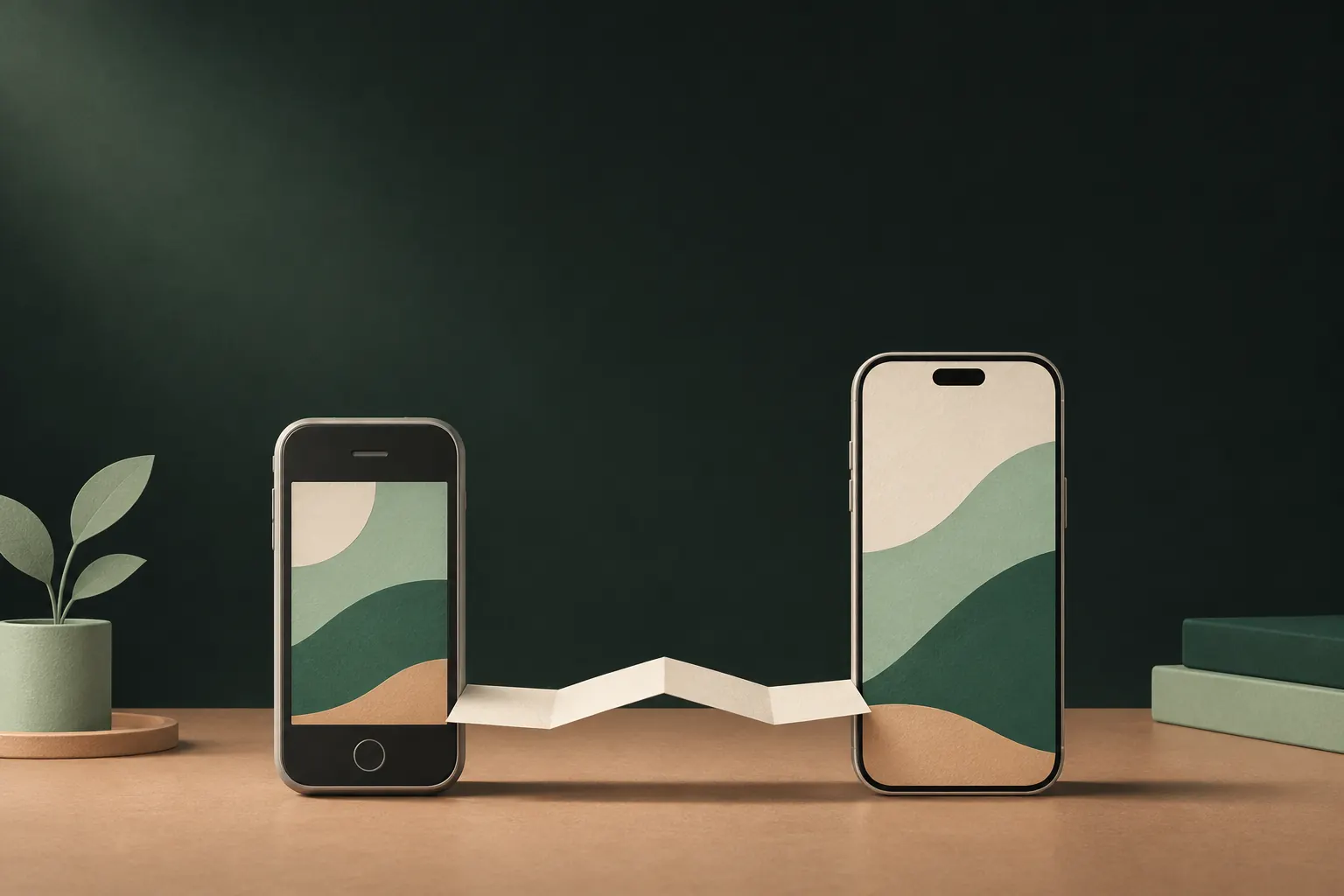
Don't rely on Quick Start or a regular iPhone backup to carry an encrypted photo vault: many vault apps keep their files out of those on purpose. Back the vault up with the app's own method first, restore it on the new iPhone, check that everything is there, and only then erase the old phone.
The order matters more than the details. Most lost vaults aren't lost to hackers; they're lost on the day someone wipes the old phone too early.
Before you wipe the old phone: three checks
Do these while the old iPhone still works and still has your vault on it.
- Do you know how your vault app backs up? Look in the app's settings for a backup or cloud option. Note whether it's on, where it goes, and when it last ran.
- Do you have what the restore needs? That's usually a password, a recovery phrase or key, or an account login, depending on the app. Find it and test it now, not on the new phone.
- Is the backup current? If you added photos last night and the backup ran last month, those photos aren't in it yet. Trigger a backup manually if the app lets you.
Why Quick Start or an iPhone backup may not carry an encrypted vault
When you set up a new iPhone, Quick Start can move your data from the old one, or you can restore from an iCloud or computer backup. Apple says an iCloud backup includes app data for apps you've downloaded, so it's natural to assume your vault comes along.
It often doesn't, for two reasons:
- Apps can opt files out of backups. iOS lets an app mark files as excluded from backup. Security-focused vault apps commonly do this so a copy of your private files doesn't end up inside a general device backup.
- Some keys never leave the device. iOS lets apps store secrets in the Keychain so they stay on that iPhone only and aren't migrated. If part of the vault's key lives there, even a copied file couldn't be opened on another phone.
The result can be confusing: the app appears on your new iPhone, with its icon in the same place, but it opens empty or asks you to set it up. The vault itself stayed behind.
This isn't a flaw. It's what keeps your vault from being readable by anyone who restores your backup, or by anyone with access to it. It just means the vault needs its own way across.
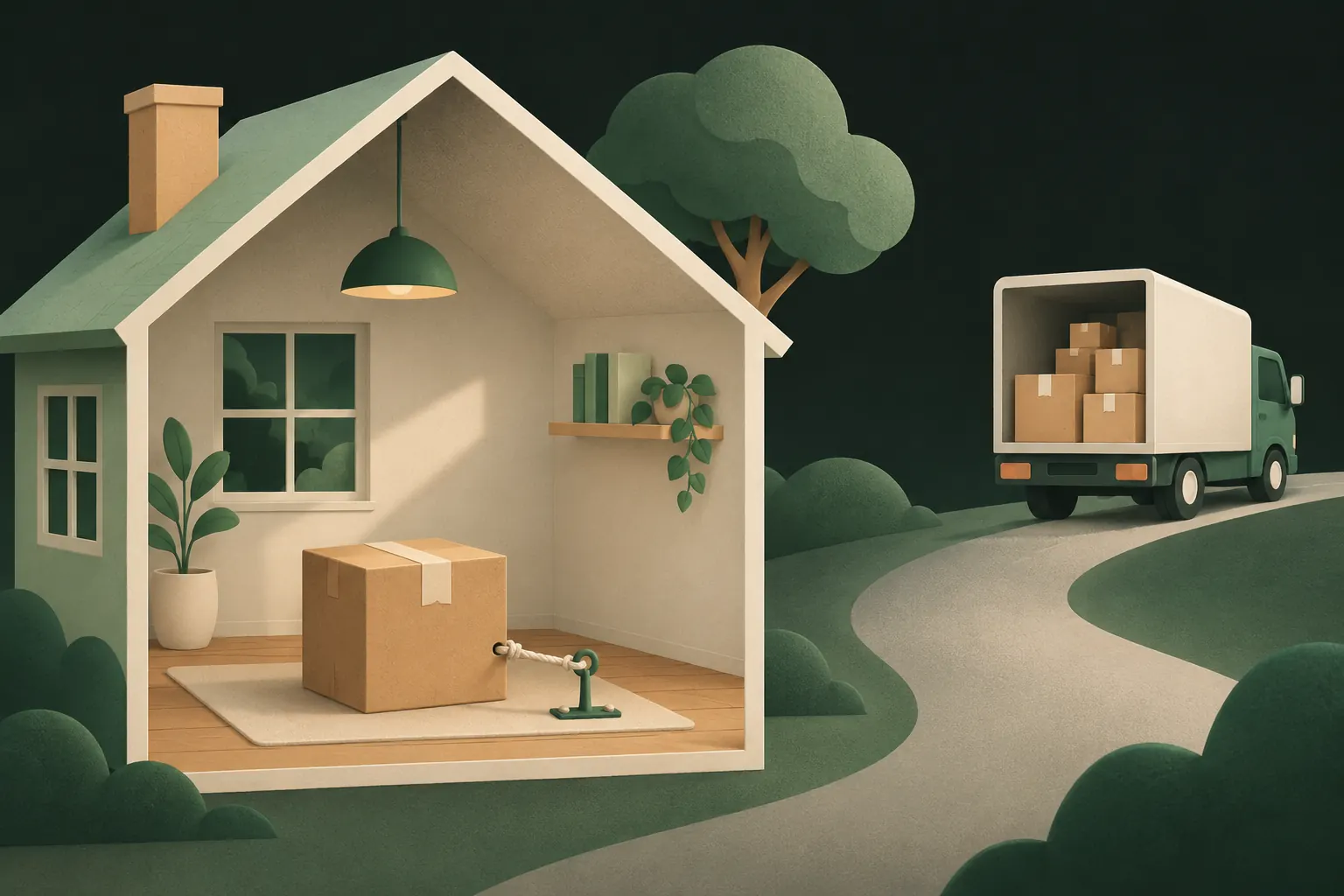
Moving a Private Vault vault with its recovery phrase
In Private Vault, the recovery phrase is what links a vault to a new device, not the pattern. Vault files are excluded from iPhone and computer backups, and the salt used with your pattern stays in the old iPhone's Keychain only. So the path goes through Encrypted iCloud backup.
A few details that help:
- One vault at a time. Each vault has its own phrase and its own backup. Repeat the steps for every vault you have.
- Lost a phrase? Open that vault on the old iPhone with your pattern and create a new one in Vault settings → Recovery phrase. Do this before you move. More on the recovery phrase.
- Same shape, new key. You can draw the same pattern you used before. It produces a different key on the new device, which is by design.
- Set up device-only settings again. If you used an emergency pattern on the old phone, set it up again on the new one.
- Keeping both devices? If you want the vault on an iPhone and an iPad at the same time, Device sync (Pro) keeps them in step. Without it, the app will ask which device should win if both change the same backup.
If the old iPhone is lost or broken
Sometimes there's no old phone to work from. Then everything depends on what was set up before.
- A backup existed. Restore it on the new iPhone with whatever the app requires. In Private Vault, that's the vault's recovery phrase; you get the vault as of its last backup, so anything added after that is missing.
- No backup, but the phone still turns on. A cracked screen or a dead battery isn't the end. Get the phone working long enough to unlock the vault and run a backup, or export the files.
- No backup and the phone is gone. An encrypted vault that existed only on that phone can't be recovered by anyone. That's the hard side of real encryption.
If you still have your Apple Account, don't delete the app's data from your iCloud storage while you sort this out: that data may be your backup.
Other vault apps: export first, then import
If your vault app has no backup, or you're switching apps while you move, take the files out yourself.
- Use the app's export. Most vault apps let you select items and save them to Photos or Files. Export everything, including videos and documents.
- Count what came out. Compare the number of items exported with the number in the vault. Videos and large files are the usual gaps.
- Move the exported files. If you export into Photos with iCloud Photos on, they'll appear on the new iPhone, but they're also back in your normal library and cloud. A computer or a cable transfer keeps them out of the cloud.
- Import into the vault on the new phone, then remove the exported copies from Photos and empty Recently Deleted.
Exported files are no longer encrypted. Do this on a device you control, and clean up afterwards. If you're switching to a new app at the same time, see moving photos into a vault and removing the originals.
Verify on the new phone, then erase the old one
Once the vault opens on the new iPhone:
- Spot-check the content. Open a few photos, play a video all the way through, open a document. Check the oldest items as well as the newest.
- Compare counts between the old and new phone, folder by folder if you can.
- Check every vault. It's easy to move the main one and forget a second vault you rarely open.
- Then erase the old iPhone. Apple's built-in Erase All Content and Settings removes the device's data; our guide on selling or trading in an iPhone with private photos covers the rest of that checklist.
If something is missing, the old phone is still your copy. Run another backup there and restore again. Stuck? Our support page covers the common questions.
Questions
Is my vault included in my iPhone backup?
Often not. Many encrypted vault apps, Private Vault included, exclude vault files from iPhone and computer backups on purpose. Check your app's own backup option instead.
Do I need my old phone to restore?
Not with Private Vault, as long as Encrypted iCloud backup was on and up to date. The recovery phrase and the backup are enough. Still, keep the old phone untouched until the new one is checked.
Can I use the same pattern on the new iPhone?
Yes. After restoring with the recovery phrase you set a pattern for the new iPhone, and you can draw the same shape as before.
What if I didn't turn on iCloud backup?
Turn it on now on the old iPhone and wait until it finishes. If the old phone is already gone, a vault that was never backed up can't be recovered.
Keep it private on your iPhone
No account. No analytics. Encrypted on your iPhone.