Before you hand an iPhone over, make sure every private photo exists somewhere else, sign out of your Apple Account, and erase the phone with Erase All Content and Settings. Erasing is thorough, but it's also final: anything that was only on that phone, including a vault app without a backup, is gone with it.
Here's the order that avoids both mistakes: leaking photos to a stranger, and losing them yourself.
1. Make sure everything private is somewhere else
Erasing doesn't care what was important. Before you start, walk through where your private photos and files actually live:
- Your photo library. If iCloud Photos is on, the library is in iCloud and will be on your next iPhone. If it's off, back up the phone or move the photos first.
- The Hidden album. Hidden photos are part of the library, so they follow the same rule as above. Our guide to hidden photos and iCloud explains exactly how they sync.
- Locked notes, files in Files "On My iPhone", downloads in other apps. These may exist only on this device.
- Vault apps. These deserve their own step, below.
2. Vault apps: back up or move them first
This is the step people get wrong. A good vault app keeps its files encrypted and out of the regular iPhone backup, precisely so they don't leak through it. The flip side is that a normal backup or Quick Start transfer may not bring the vault's contents across. Each vault app handles this differently, so check yours before you erase.
For any vault app, ask:
- Is there a backup inside the app, and is it turned on?
- What do I need to restore it on another phone: a password, a recovery phrase, an account?
- Have I actually tested it, or at least seen the backup complete?
If you can't answer all three, export the photos from the vault to the new phone, or keep the old phone until you can.
3. Unpair accessories and sign out of your Apple Account
- Apple Watch: if a watch is paired with this iPhone, unpair it first.
- Sign out: open Settings, tap your name, scroll down and tap Sign Out. On iOS 26 you'll be offered to erase the device or to sign out without erasing. If asked which account, choose Sign out of iCloud and Store.
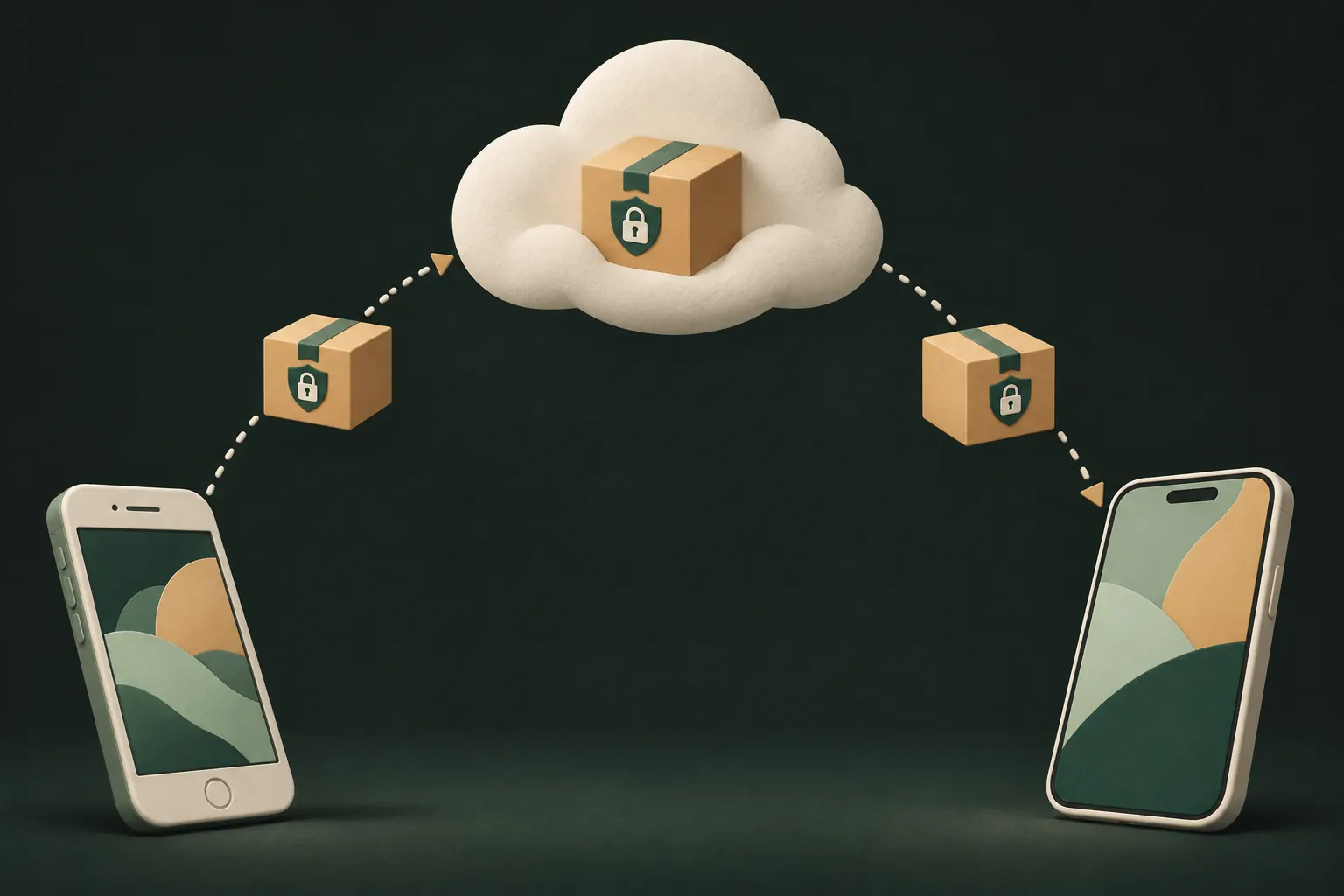
Signing out matters for one big reason: Find My and Activation Lock. While your Apple Account is on the phone, nobody else can activate it. A buyer with a phone that's still locked to you can't use it, and a trade-in may be refused.
4. Erase All Content and Settings
- Open Settings → General → Transfer or Reset iPhone.
- Tap Erase All Content and Settings.
- Enter your passcode and, if asked, your Apple Account password.
- When asked about the eSIM, choose to erase it as well (unless you're keeping the number on this phone).
- Tap Erase iPhone and wait for the setup screen.
Apple's own checklist for this is What to do before you sell, give away or trade in your iPhone. Erasing also turns off Find My and Activation Lock.
Is erasing really enough?
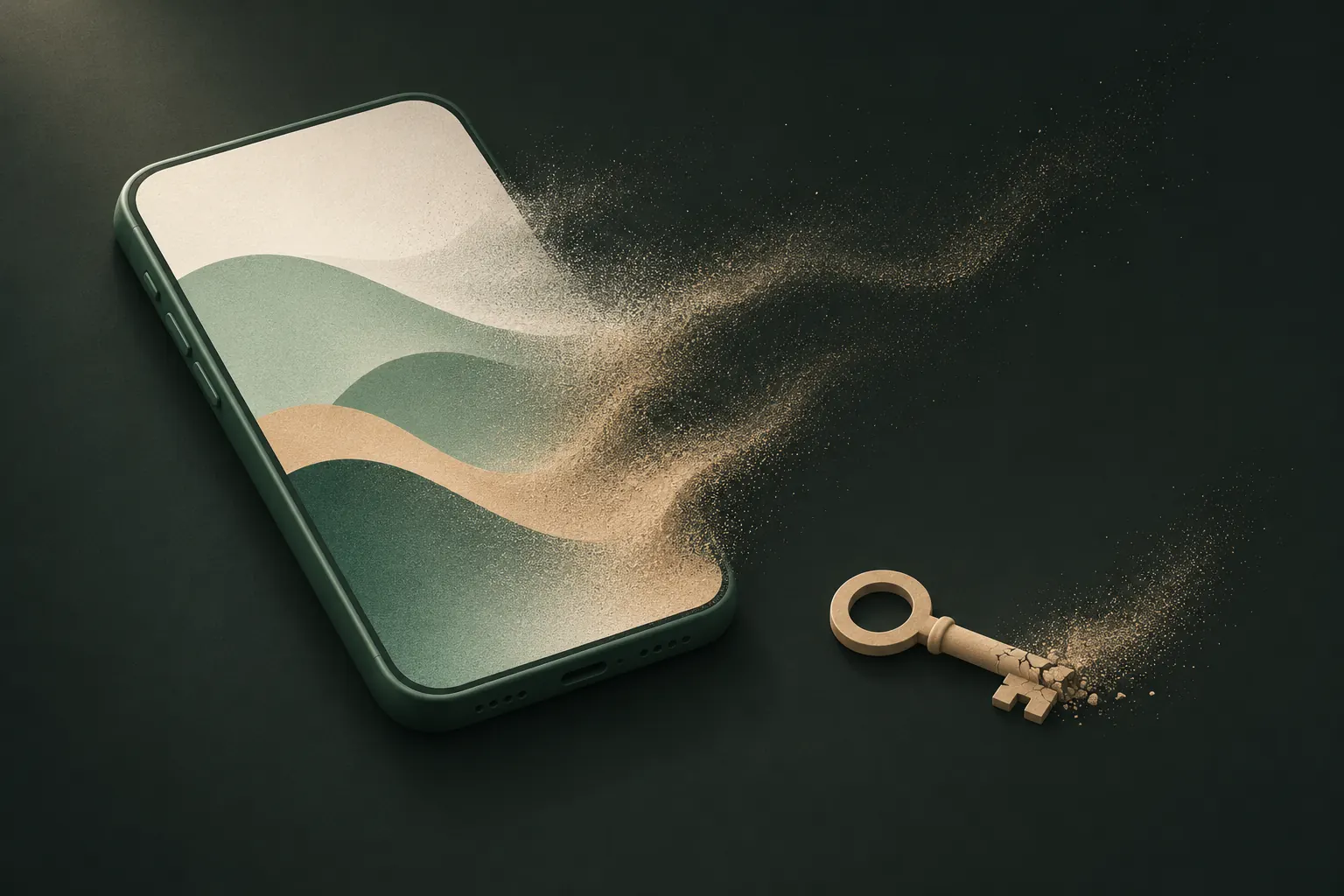
For photos, yes. iPhone storage is encrypted all the time, and erasing destroys the keys that unlock it. Apple describes this as making the user data cryptographically inaccessible. That's why you don't need special "shredding" apps for an iPhone, and why you shouldn't pay for one.
What erasing doesn't do is touch anything outside the phone. Which brings us to iCloud.
5. What erasing does (and doesn't do) to iCloud
Erasing the iPhone doesn't delete anything from iCloud. That's usually what you want, but be aware of what it means:
- Your iCloud Photos library stays in iCloud and keeps syncing to your iPad, Mac and next iPhone.
- iCloud backups of the old phone stay in iCloud until you delete them.
- Encrypted backups made by apps (such as a vault's backup) stay too.
The opposite mistake is worse: don't delete photos to "clean" the phone while iCloud Photos is on. A deletion syncs everywhere. If you delete your library on the old phone before erasing, you delete it from iCloud and your other devices as well.
If you no longer have the phone, Apple's checklist covers that too: ask the new owner to erase it, or erase it remotely from Find My on iCloud.com, then remove it from your trusted devices and change your Apple Account password.
Starting the new iPhone without restoring everything
A new phone is a good moment to leave old things behind. You don't have to bring your whole history:
- Set up as new instead of restoring a backup. Sign in with your Apple Account, then choose which iCloud features to turn on.
- Hold off on iCloud Photos until you've cleaned up the library on another device, if you want a smaller library on this phone.
- Restore vaults one at a time. Only bring back the vaults you need on this device.
Giving the phone to family
Handing your old iPhone to a partner, parent or child feels different from selling it, but the steps are the same. It's tempting to sign out and leave everything else in place, "just in case". Don't. Apps, downloaded files, cached photos and old vaults can all survive a sign-out.
Erase it fully, then let them set it up with their own Apple Account. If you want to share purchases or subscriptions with them, Family Sharing does that without sharing your photos, messages or notes.
Quick checklist
- Every private photo exists somewhere other than this phone.
- Each vault app is backed up, and you have what you need to restore it.
- Apple Watch unpaired.
- Signed out of your Apple Account.
- Erase All Content and Settings, including the eSIM.
- Physical SIM removed.
- The phone shows the Hello screen before it leaves your hands.
Questions
Does a factory reset delete iCloud photos?
No. Erase All Content and Settings wipes the iPhone, not your iCloud. Photos in iCloud Photos stay there and keep syncing to your other devices.
Can a buyer recover deleted photos after I erase the iPhone?
Not in any practical way. Erasing destroys the encryption keys that protect the data, so what remains on the storage can't be read.
Should I remove the SIM or eSIM?
Yes. Take out a physical SIM, and when the erase asks whether to remove the eSIM too, erase both unless your carrier told you otherwise.
Can I set up a new iPhone without my old photos?
Yes. Set it up as new instead of restoring a backup, and leave iCloud Photos off until you've decided what should sync.
Keep it private on your iPhone
No account. No analytics. Encrypted on your iPhone.