The built-in way to hide an app on iPhone is to touch and hold its icon, tap Require Face ID, then Hide and Require Face ID. The app moves to a locked Hidden folder at the bottom of the App Library and disappears from the Home Screen and Search. Anyone who knows your passcode can still open that folder.
There are three other ways to make an app less visible: move it off the Home Screen, put a shortcut with a different name and icon in its place, or use an app that offers alternate icons. Here’s what each one hides, and what it doesn’t.
Built-in: Hide and Require Face ID
Since iOS 18, most apps can be hidden and locked in one step.
- Touch and hold the app’s icon on the Home Screen.
- Tap Require Face ID (or Touch ID / Passcode).
- Tap Hide and Require Face ID, then confirm.
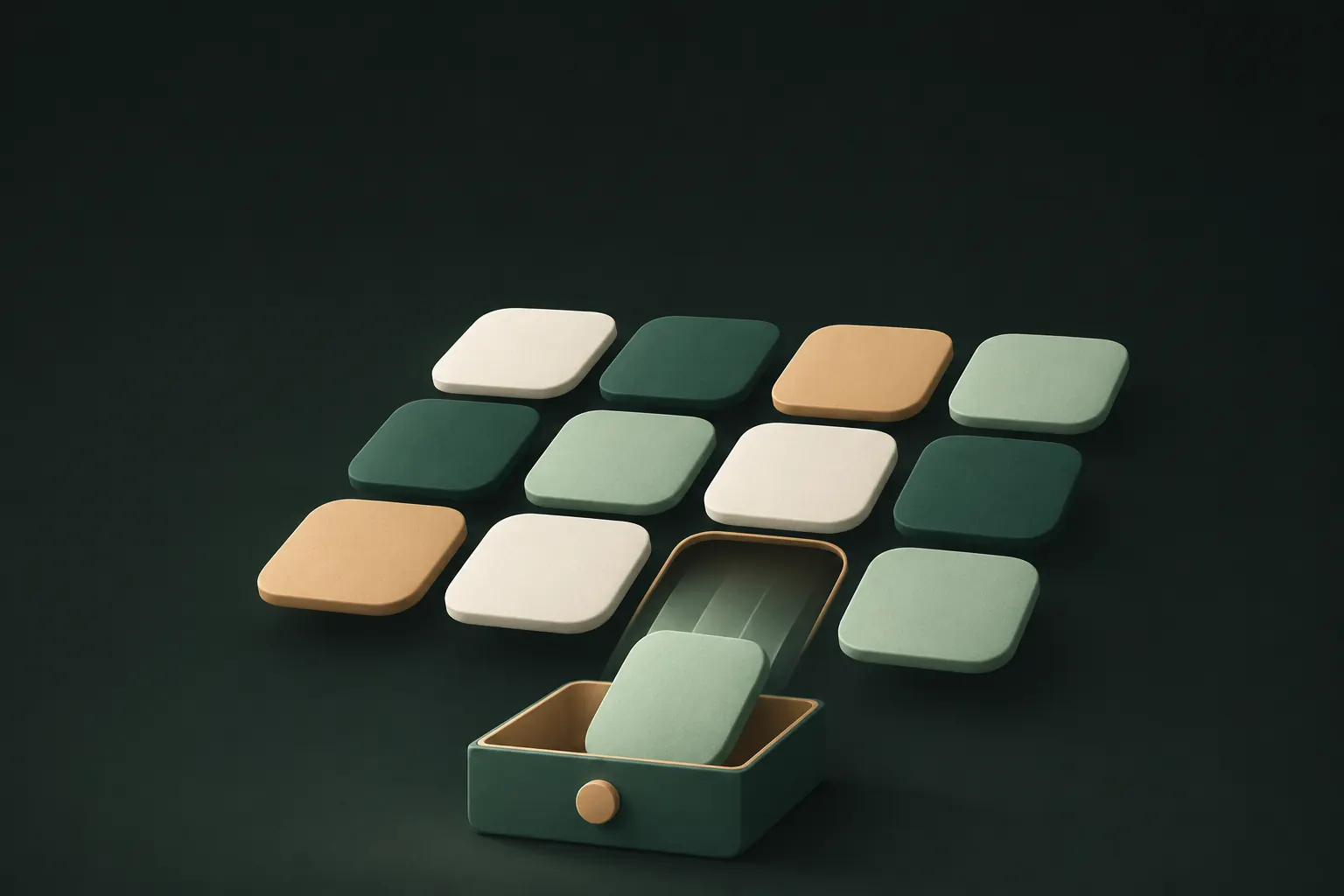
The app leaves the Home Screen and goes into the Hidden folder at the very bottom of the App Library (swipe left past your last Home Screen page). The folder opens only with Face ID, Touch ID or your passcode. Apple’s guide is Lock or hide an app on iPhone.
What hiding changes:
- the app is off the Home Screen and out of the normal App Library categories;
- it doesn’t show up in Search, and iOS holds back its notifications;
- opening it needs Face ID, Touch ID or the passcode every time.
A nice detail: the Hidden folder exists on every iPhone running a supported version, whether or not anything is in it. Its presence alone doesn’t say you’re hiding something.
Not every app can be hidden. Some built-in apps can only be locked, and a few, such as Settings, can’t be locked at all. To unhide, open the Hidden folder, touch and hold the app and choose Don’t Require Face ID.
Finding a hidden app again
Swipe left past your last Home Screen page to the App Library, scroll to the bottom and tap Hidden. After Face ID, Touch ID or your passcode, the folder opens and you can launch the app from there. You can’t search for a hidden app; you go through the folder.
Remove from Home Screen to the App Library
The older, lighter option:
- Touch and hold the app icon.
- Tap Remove App, then Remove from Home Screen.
The app stays installed and works normally. It just lives in the App Library instead of on a Home Screen page. It still appears in its App Library category, in Search and in notifications, with no lock. This is tidying, not hiding.
Custom icons with Shortcuts
If you want an app to look like something else on the Home Screen, the Shortcuts app can put a bookmark there with any name and icon you like.
- Open Shortcuts and tap + to create a shortcut.
- Add the Open App action and choose the app.
- Rename the shortcut, for example “Recipes”.
- Open the shortcut’s details and choose Add to Home Screen. Pick a name and an icon, such as a photo you saved for this.
- Move the real app off the Home Screen (or hide it, as above).
Now “Recipes” on your Home Screen opens the app. Two catches: the real app still shows its own name in the app switcher and App Library, and opening it through Shortcuts may briefly show a Shortcuts banner. It’s a disguise for a quick glance, nothing more.
Apps with alternate icons
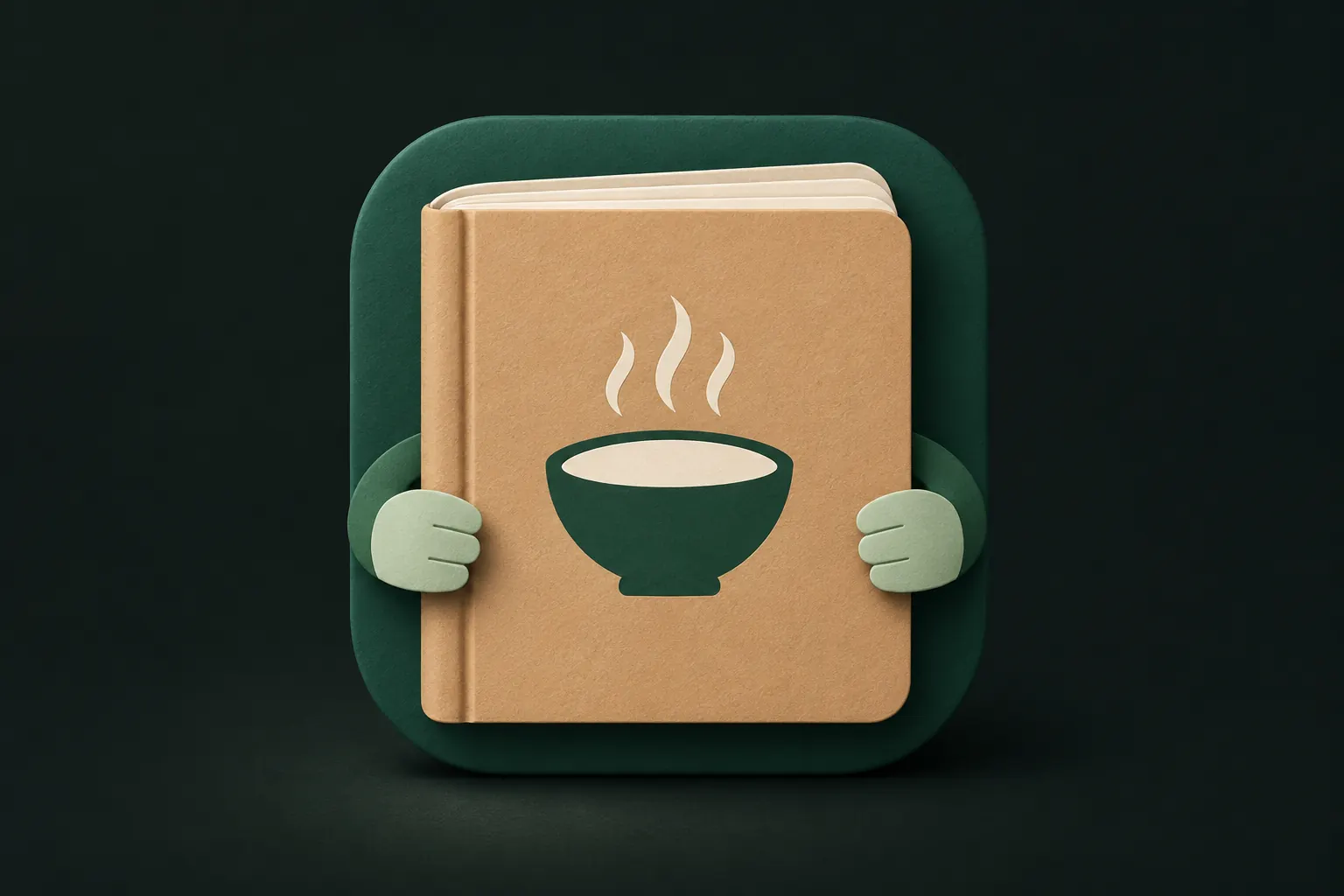
Some apps let you choose between several icons in their own settings. iOS shows a short confirmation when the icon changes. What apps can’t do is change the name under the icon: iOS always shows the app’s real name, so a “calculator” icon still says the app’s name underneath. Combine it with the Shortcuts trick above if the name matters.
Where hidden apps still show
No method makes an app truly invisible on your iPhone. Places it can still be found:
- The Hidden folder, for anyone with your passcode.
- App Store purchase history. Every app you’ve downloaded appears under your account’s purchases. You can hide an app from that list in the App Store, but that’s a separate step.
- Screen Time. If Screen Time is on, usage reports can list apps you used, depending on settings.
- Settings and storage lists. Depending on the iOS version and how the app is hidden, it may still appear in some lists in Settings.
- The app switcher, right after you’ve used it, until you close it.
- Your Apple Account on other devices, if automatic downloads are on and the app installs there too.
If someone is checking your phone carefully, any of these can give an app away. Our guide on signs someone went through your phone covers the other side of that.
Fake calculators: why a disguise isn’t protection
Many vault apps work as a real calculator until you type a secret code. It sounds clever, and it may stop a quick glance. But:
- People know the trick. Calculator vaults are a well-known category, and “why do you have two calculators?” is an easy question.
- The disguise isn’t the security. What matters is whether the files are encrypted with a key that comes from your code. Some disguised apps do this well; some just hide plain files behind the calculator.
- A disguise can draw attention once discovered. A plain vault app is just an app; a fake calculator looks like you were hiding something.
That’s why, in our view, a disguise is a nice extra on top of encryption, never a replacement for it. If someone might find the app, it matters more that they can’t open it, and even more that they can’t tell what’s inside. A vault with plausible deniability, where any pattern opens a vault and none is listed, helps with that last part.
The comparison with calculator vault apps goes through what to check, and how to lock the Photos app covers the built-in locks for photos themselves.
Which to use
- Keep an app off your Home Screen, no secrecy needed: remove it to the App Library.
- Keep an app out of sight and locked from casual users: Hide and Require Face ID.
- Make an app look like something else: alternate icon or a Shortcuts bookmark, plus hiding the real app.
- Keep what’s inside private, even if the app is found: use an app that encrypts its content with a secret other than your passcode.
Questions
Can someone see hidden apps on my iPhone?
Anyone who knows your passcode can open the Hidden folder in the App Library. Apps also remain in your App Store purchase history unless you hide them there.
Can a vault app hide its own icon?
No. iOS doesn’t let an app remove itself from the Home Screen or rename itself. It can offer alternate icons, and you can hide it with iOS’s own Hide option.
Does a hidden app still send notifications?
Generally no: iOS holds back notifications from apps you hide. An app that’s only locked, not hidden, still notifies you, with its content kept out of previews.
Can I change an app’s name on the Home Screen?
Not directly. You can create a shortcut that opens the app, give it any name and icon, and move the real app to the App Library.
Keep it private on your iPhone
No account. No analytics. Encrypted on your iPhone.