Family Sharing on its own doesn't show your photos to anyone. Your family sees your pictures only through something that actually shares them: an iCloud Shared Photo Library, shared albums, or using the same Apple Account or the same device. Check those three, and you know exactly who can see what.
Family Sharing alone doesn't share photos
Family Sharing is about money and access: shared App Store purchases, subscriptions like Apple Music or iCloud+, Ask to Buy for kids, location sharing if you turn it on. When a family shares one iCloud+ storage plan, everyone uses the same pool of storage, but each person's photos and documents stay in their own account.
So "I'm in my parents' family group" or "my partner manages our family plan" doesn't, by itself, mean anyone can browse your library. The real exposures are the ones below.
The Shared Library: what moves, what's hidden
iCloud Shared Photo Library is a second library you share with up to five other people. You keep your Personal Library, and anything you put into the Shared Library becomes visible to every participant. According to Apple's guide:
- Everyone in the Shared Library can add, edit and delete its content.
- The person who created it provides the iCloud storage for it.
- You can choose how photos get there: manually, automatically from the Camera when you're near participants, or when you're at home.
Two details catch people out:
- Camera auto-sharing. If sharing from the Camera is set to automatic, new photos can land in the Shared Library without you thinking about it.
- Hiding doesn't make a shared photo private. Apple says that if you hide a photo in the Shared Library, it moves to the Hidden album for all participants, who can still view or unhide it. Hiding is not the way to take something back.
Photos in your Personal Library, hidden or not, aren't visible to Shared Library participants.
One Apple Account on two devices
This is the most common reason "family can see my photos", and it has nothing to do with Family Sharing.
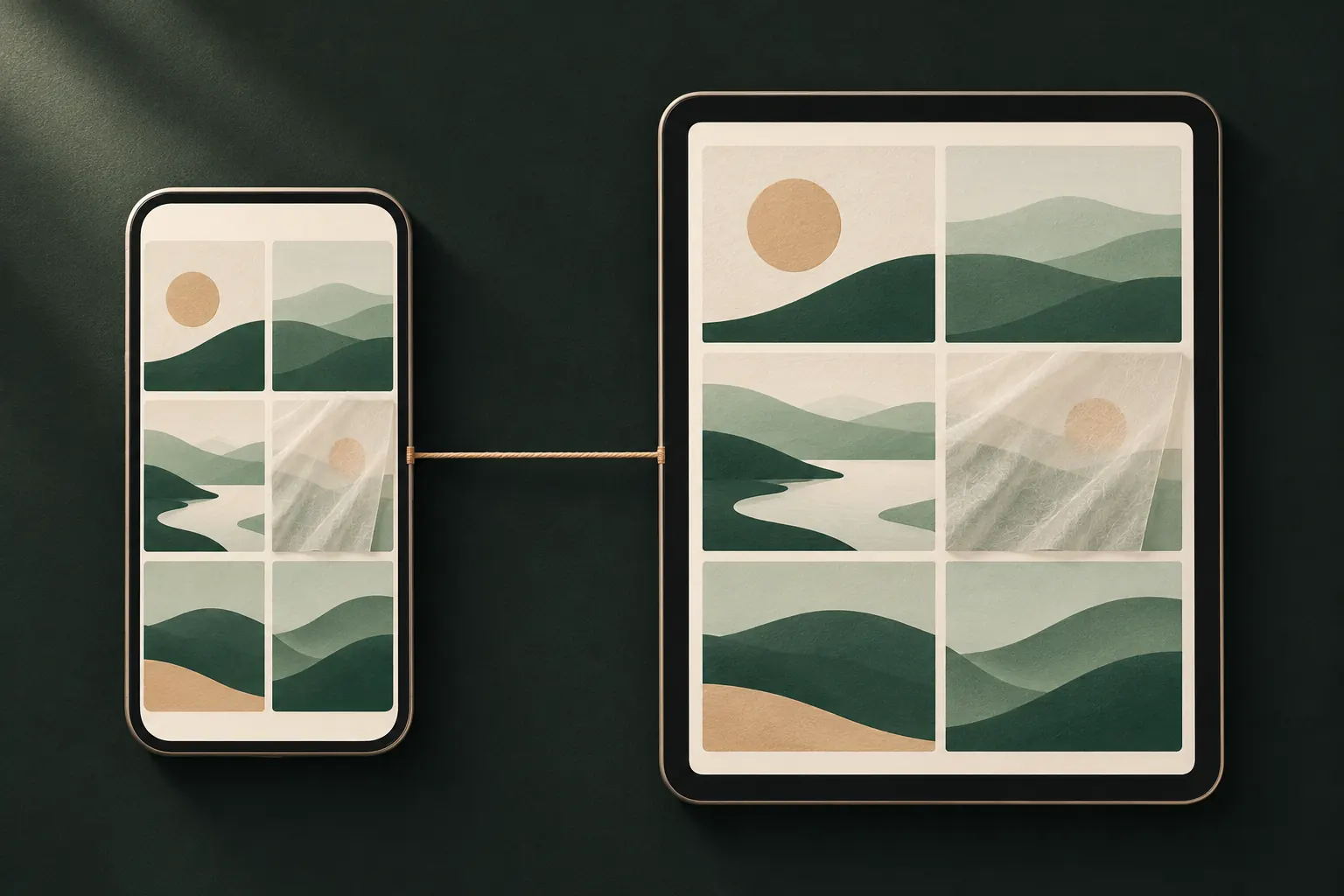
If two people use the same Apple Account (a parent and child, or a couple sharing an old iPhone or iPad), and iCloud Photos is on, everything syncs between their devices. Every photo you take appears on the other device, Hidden album included, because the Hidden album syncs through iCloud Photos too.
The fix is simple, if a little work: each person should have their own Apple Account. Children can get one through Family Sharing, which keeps purchases and parental controls working. If that's not possible right now, turning off iCloud Photos on the shared device stops new photos from syncing to it. Our guide on how hidden photos behave with iCloud explains the sync side.
Settings to check
Go to Settings → Apps → Photos on your iPhone and look at:
- Shared Library. Are you in one? Who's in it? How does the Camera share: automatically, manually, or at home?
- iCloud Photos. On means your library syncs to every device signed in with your Apple Account.
- Shared Albums. Shared albums are separate from the Shared Library. Open Photos → Albums, find Shared Albums, and check who's subscribed to each one. Anyone subscribed can see what you add.
- Show Hidden Album. Turning it off removes the Hidden album from the Photos app's album list on this device. It doesn't stop syncing.
Then, on any device someone else uses, check Settings → [name]: whose Apple Account is signed in?
Move a photo out, or leave the Shared Library
To take a photo you contributed back to yourself, select it in the Shared Library, tap the More button and choose Move to Personal Library. Other participants then can't see it. You can only move items you contributed.
To leave entirely (Apple's steps):
- Go to Settings → Apps → Photos → Shared Library.
- Tap Leave Shared Library.
- Choose whether to copy everything from the Shared Library into your Personal Library, or only what you contributed.
- Confirm.
Stay signed in to iCloud with iCloud Photos on until it finishes. Remember the others still have everything that was in the Shared Library while you were there; leaving doesn't pull copies back from their devices or Personal Libraries.
Location, too
Photos aren't the only thing families see. If you share your location with family in Find My, they see where you are, not your photos. But photos themselves can carry the place where they were taken. If you send pictures to the family group, the place travels with them unless you turn it off: in the share sheet, tap Options and switch off Location. Our guide on removing location from photos shows every option.
Teen privacy and parental controls
Parents worried about kids, and teens worried about parents, often mix up three different things:
- Screen Time shows how long apps are used, sets limits and can block content or purchases. It isn't a way to browse someone's photos.
- Communication Safety can warn children about sensitive images in some Apple apps. It works on the device; it doesn't send the photos to parents.
- A shared Apple Account or a parent-controlled Shared Library is what actually exposes photos. If a parent signed a teen's iPhone into the parent's account, the parent's devices see the teen's photos, and the other way round.
If you're a teen whose phone is set up on a parent's account, the honest answer is that your photos aren't private from that account. Talk to them about moving you to your own child account inside Family Sharing; you keep the family purchases, and you get your own library.
Keep the private ones out of every library
Sharing settings change. Someone joins a Shared Library, a camera switches to auto-share, a teenager borrows the iPad. Photos that must never be part of any of it are easier to protect if they aren't in the photo library at all.
The short version
- Family Sharing: doesn't share photos.
- Shared Library: everything in it is everyone's, hidden items included.
- Same Apple Account: everything syncs, including Hidden.
- Shared albums: everyone subscribed sees what you add.
- The truly private stuff: keep it out of the library.
Questions
Can Family Sharing see my photos?
No. Family Sharing shares purchases, subscriptions and storage plans, not the content of your library. Photos are shared only through a Shared Library, shared albums, or a shared Apple Account or device.
Are hidden photos in the Shared Library?
Only if they're in the Shared Library. Apple says hiding a photo there moves it to the Hidden album for all participants, who can view or unhide it.
What happens to photos when I leave a Shared Library?
You choose to copy everything from the Shared Library into your Personal Library, or only what you contributed. Your own Personal Library isn't touched.
Can my parents see my photos through Screen Time?
Screen Time is for usage reports and limits; it doesn't give parents a view of your photo library. A shared Apple Account or a Shared Library would.
Keep it private on your iPhone
No account. No analytics. Encrypted on your iPhone.