To stop your photos appearing on an iPad, Mac or other device, turn off iCloud Photos on that device only: on an iPad, Settings → your name → iCloud → Photos, then turn off Sync this iPad. Your library stays in iCloud and on your iPhone. What you need to decide is whether that device keeps a downloaded copy or removes the photos.
Here's how it works on each device, plus the one mistake that deletes photos everywhere.
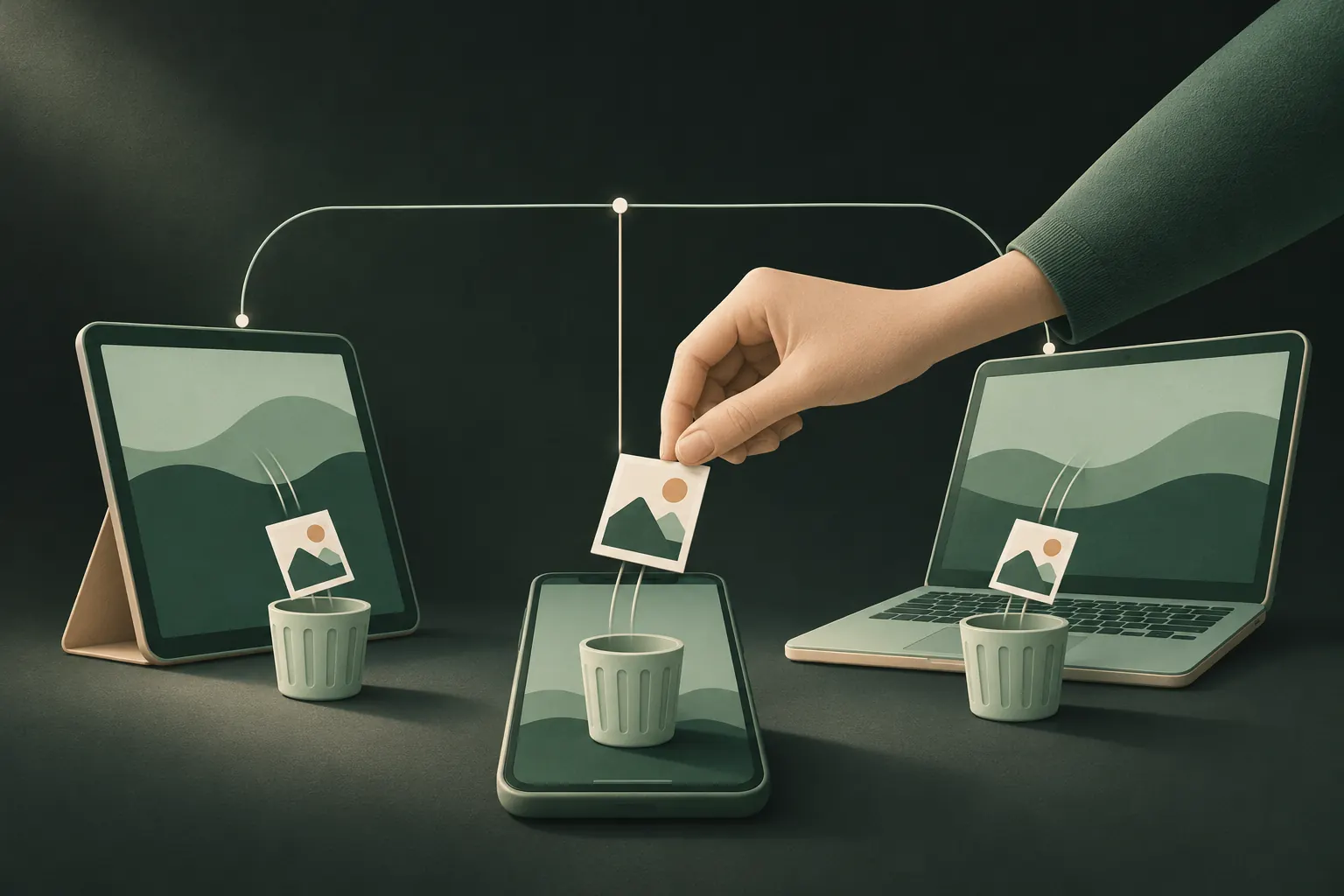
What turning off iCloud Photos on one device does
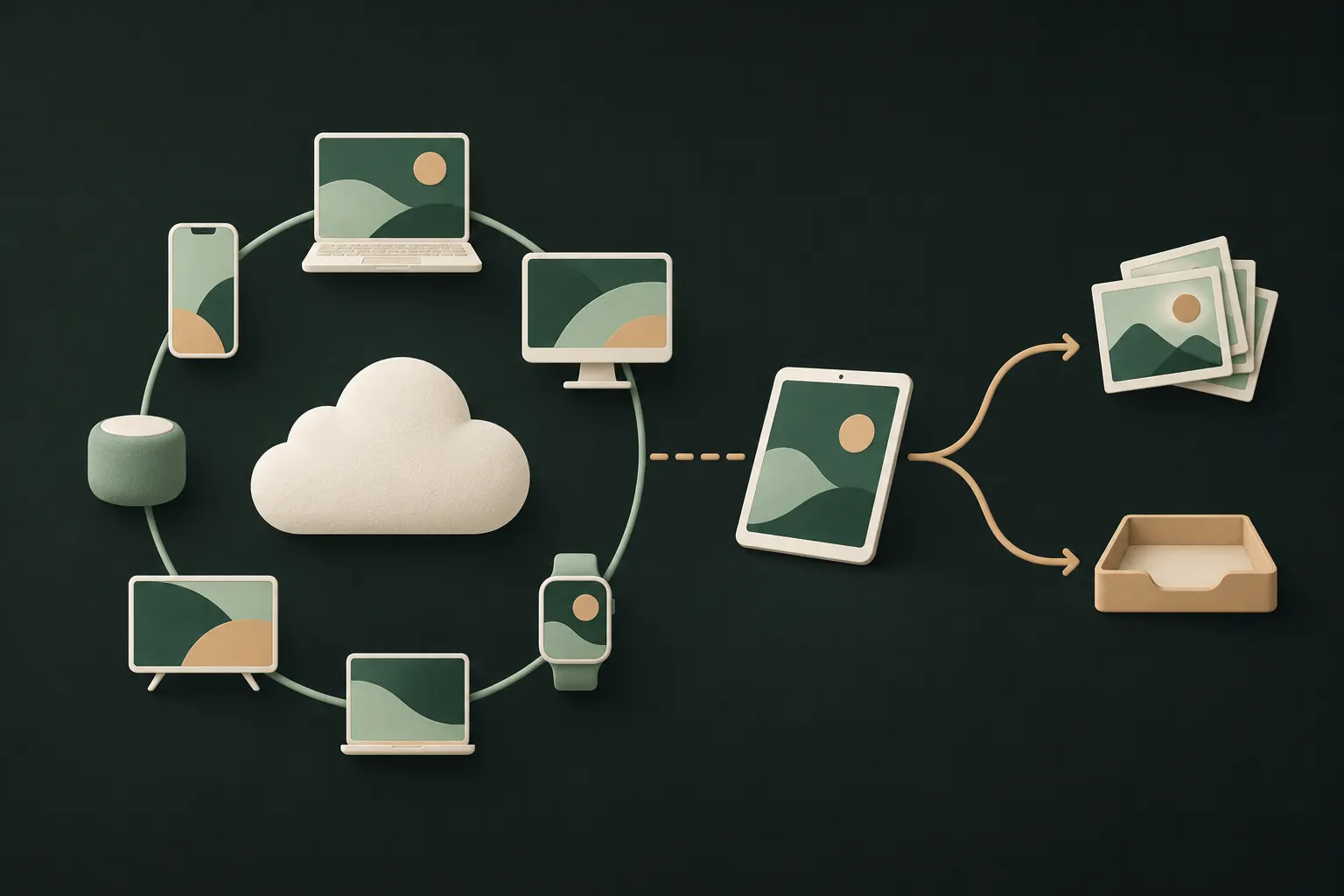
iCloud Photos keeps one library in iCloud and mirrors it to every device signed in to your Apple Account with iCloud Photos on. Turning it off on one device simply takes that device out of the mirror:
- Other devices and iCloud aren't affected. The library stays the same everywhere else.
- New photos, edits and deletions no longer reach that device.
- You're asked what to do with the photos already on it:
- Download Photos & Videos keeps a copy on the device. It's now a separate, local library that won't sync.
- Remove from iPad (or iPhone) removes the iCloud photos from that device.
If the device has Optimize Storage on, it only holds smaller versions of most photos. Before choosing Download, make sure there's enough free space for full-size copies, and note Apple's warning that optimized versions aren't the original resolution. The steps are in Apple's guide to turning off iCloud Photos.
iPad (or a second iPhone)
- Open Settings and tap your name.
- Tap iCloud, then Photos.
- Turn off Sync this iPad.
- Choose Download Photos & Videos or Remove from iPad.
If the iPad belongs to someone else, such as a child using your old iPad, read the section on shared devices below first. Turning off Photos alone may not be what you want.
Mac
- Open System Settings from the Apple menu and click your name.
- Click iCloud, then Photos.
- Turn off Sync this Mac.
- Choose Download to keep a copy on the Mac, or Remove from Mac (sometimes shown as Delete from Mac).
You can also find the iCloud options inside the Photos app: Photos → Settings → iCloud. That's where you choose between Optimize Mac Storage and Download Originals to this Mac.
Apple Watch and photo faces
An Apple Watch doesn't use iCloud Photos. It gets photos from your iPhone: one synced album, plus Memories and Featured Photos if those are on. To control what it shows:
- On your iPhone, open the Watch app and tap My Watch.
- Tap Photos.
- Either turn off Photo Syncing entirely, or pick a different album under the synced album setting, and turn off Sync Memories and Sync Featured Photos.
A neat trick: create an album with only photos you're happy for anyone to see on your wrist, and sync that one. To remove a single photo from the watch, remove it from the synced album on your iPhone.
If you use a Photos watch face, check which photos it uses too. Edit the face and pick a different album or different photos.
Delete on one device but keep on another
This is the part that catches people out. While iCloud Photos is on, deleting a photo deletes it everywhere: on every device and in iCloud. It goes to Recently Deleted for 30 days, then it's gone.
So to remove photos from one device but keep them elsewhere:
- Turn off iCloud Photos on that device first (steps above).
- Choose Download Photos & Videos if you want to keep some locally.
- Now delete what you like on that device. The deletions stay there.
If your goal is freeing up space on your iPhone rather than hiding photos, Optimize iPhone Storage (Settings → your name → iCloud → Photos) is the simpler answer. Originals stay in iCloud and download when you open them.
Pausing instead of turning off
Sometimes you only want a break: you've imported a batch of photos you're about to sort, and you don't want them uploading yet. On iOS 26, open Photos, go to Collections, tap your profile button and choose Pause. Uploads to iCloud stop for a day and resume on their own. This doesn't stop what's already in iCloud from appearing on your other devices, so it's not a privacy tool, just a timing one.
Check that it worked
After turning off iCloud Photos on a device, take a test photo on your iPhone and wait a few minutes. It should not appear on the device you switched off. If it does, check that you turned off sync on the right device, and that the device isn't using a Shared Library you're part of.
On your iPhone itself, photos can also surface in Memories, widgets and search. That's a separate setting from sync; see keeping photos out of Memories and search.
Shared devices: sign out vs turn off Photos
If a whole device is used by someone else, turning off Photos may not be enough.
When the device is mainly yours and you just don't want photos on it, turn off iCloud Photos as above.
When someone else uses it, such as a partner, a child or a shared family iPad, ask what else they can see. Signed in with your Apple Account, the device can also show your Messages, Notes, iCloud Drive and more, depending on what's turned on. The cleaner fix is to sign out of your Apple Account on that device (Settings → your name → Sign Out) and have them use their own. Family Sharing exists for exactly this: shared purchases and subscriptions without a shared library. More in our guide to Family Sharing and photo privacy.
Also check:
- Shared Library. If you use iCloud Shared Photo Library, photos in it are visible to all its participants by design. Keep private photos in your personal library.
- Shared albums. Anything you post to a shared album is visible to its subscribers, whatever you do with iCloud Photos.
- The Hidden album. Hidden photos sync like everything else and appear in the Hidden album on every device with iCloud Photos on. See hidden photos and iCloud.
Keeping specific photos off your other devices
Turning off iCloud Photos is all or nothing for a device. If what you really want is for a few sensitive photos to stay on one device, or only on the devices you choose, move them out of the photo library altogether.
Questions
Will turning off iCloud Photos delete my photos?
Not from iCloud or your other devices. On the device you turn it off on, you choose between downloading a copy or removing the iCloud photos from that device.
How do I delete photos from my iPhone but keep them in iCloud?
Turn off iCloud Photos on the iPhone first, then delete them. While it's on, a deletion syncs to iCloud and every other device.
How do I stop photos showing on my Apple Watch?
In the Watch app on your iPhone, tap My Watch, then Photos, and turn off Photo Syncing, or choose a different album to sync.
Does Optimize Storage keep the originals?
Yes, in iCloud. The device keeps smaller versions and downloads the full-resolution original when you need it.
Keep it private on your iPhone
No account. No analytics. Encrypted on your iPhone.