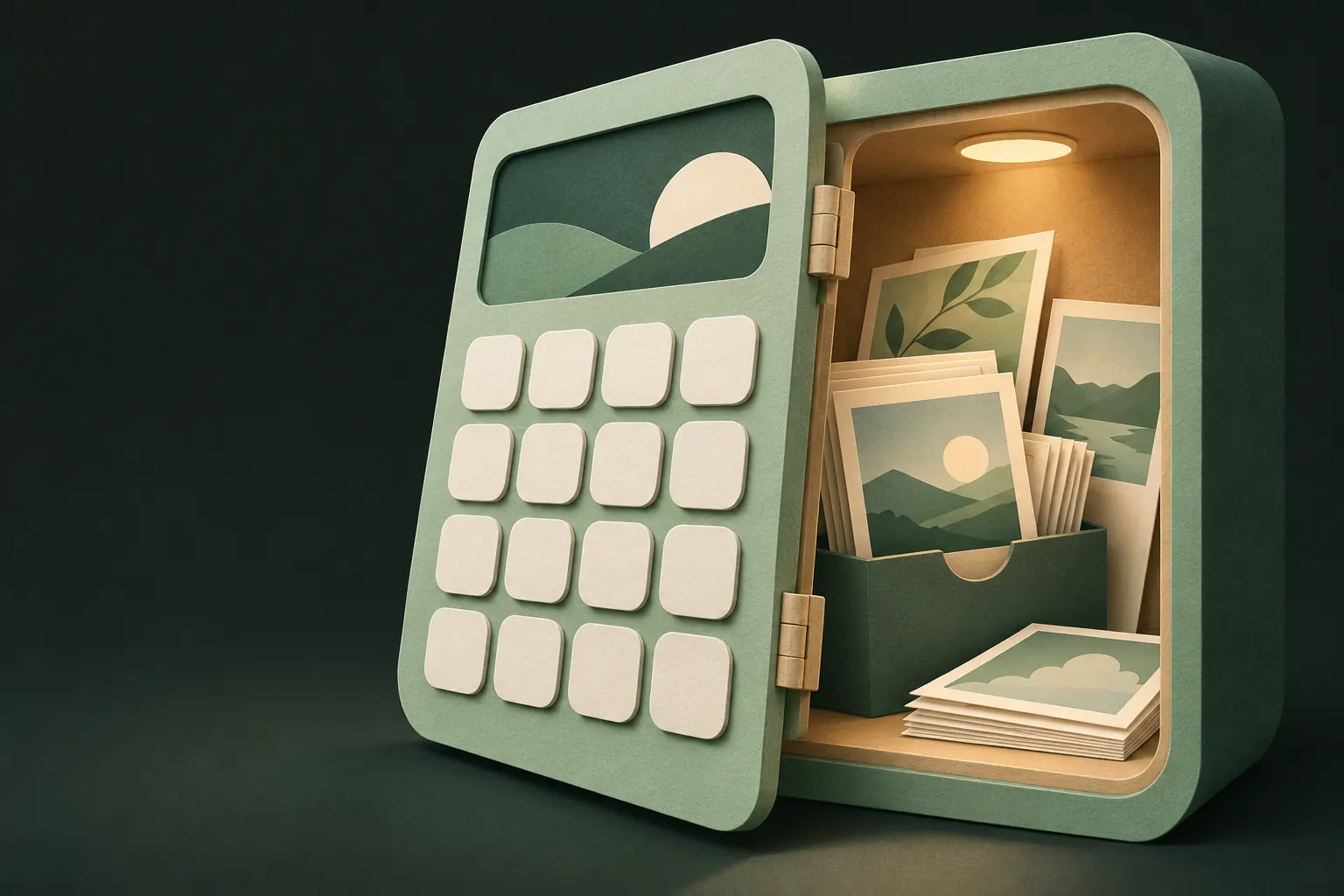
A calculator vault app looks like a calculator on your Home Screen but opens a hidden photo vault when you type a secret code. The disguise helps against a quick glance; it doesn't protect your photos on its own. The best ones pair the disguise with real encryption and no easy password reset. Among the apps we checked, Calculator#, Calculator Lock and Private Photos (Calculator%) put a calculator screen in front of the vault, while LockMyPix and Private Vault offer a calculator-style icon instead.
Here's how each disguise works, and what's behind it.
How we chose: what matters in a disguised vault
A disguise is only as good as the vault behind it. We compared each app on:
- Encryption you can verify. Many calculator vaults describe hiding, not encryption. If the listing doesn't say, assume nothing.
- Account or no account, and whether a forgotten password can be reset by email or a published code.
- Tracking, from the App Store privacy label.
- What the free tier really includes, including ads.
- Unlock options. A code typed into the calculator, a PIN, Face ID, decoys.
- Backup and recovery. Several of these apps warn that deleting the app deletes your files.
- Price model.
- How the disguise works. A working calculator, an icon only, or a fake crash screen.
Why a disguise isn't the protection
Calculator vaults are popular, and well known. Anyone who's heard of them knows to look twice at a second calculator on a phone. And the App Store page of a disguised app, with "hide photos" in its name, is one search away.
So treat the disguise as a bonus. What actually protects your photos is whether the files are encrypted, whether the key depends on a secret only you know, and whether someone can get around that secret with an email reset or a master code. Our calculator vault comparison and the read on whether vault apps are safe go deeper.

Built in, free: hide the app with Face ID
Before installing a disguised vault, know that iOS can hide apps itself. Since iOS 18, you can touch and hold an app, tap Require Face ID, then Hide and Require Face ID. The app leaves the Home Screen and Search and moves to a locked Hidden folder at the bottom of the App Library, as Apple describes. Anyone with your passcode can still open that folder. Our guide to hiding apps on iPhone walks through it.
For photos alone, the Photos Hidden album is locked with Face ID or your passcode by default. If no one else knows your passcode, these two may be enough.
Vaults with a calculator screen in front
Calculator# Hide Photos Videos
From NewSoftwares.net, this app looks and works like a calculator and, according to its listing, hides photos, videos, documents, passwords, notes and contacts. You can unlock with the calculator, a PIN, password, pattern, or Touch ID / Face ID. It backs up to iCloud, Dropbox, Google Drive or OneDrive and has a panic switch, a fake crash message and a log of failed attempts. See our Calculator# comparison.
Good for: the most complete calculator disguise, with lots of cloud backup choices.
Watch out for: the listing describes password recovery through your registered email, and doesn't state an encryption method. The free version has ads and limitations.
Price model: free with ads; a yearly subscription and a Premium Features Pack.
Privacy label: contact info may be used to track you; email address and photos or videos collected, not linked to you.
Calculator Lock - Secure Vault
From ZipoApps, this calculator opens the vault when you type your password and press "=". Its listing describes photo and video hiding, intruder selfies, iCloud and Google Drive backup, a password manager and a mode that changes the icon.
Good for: a simple calculator front end with backup.
Watch out for: its own FAQ says a forgotten password can be reset by typing a master reset code, published in the listing, and answering a security question. That's convenient for you, and also known to anyone who reads the listing. It also warns not to uninstall the app or your files will be lost, and doesn't state an encryption method.
Price model: free; Pro weekly, yearly or lifetime, and purchases to remove ads.
Privacy label: identifiers may be used to track you; device ID collected for third-party advertising, not linked to you.
Private Photos (Calculator%)
From Digital Mind Co., Ltd., this is a basic working calculator with a private photo and video album. The listing says everything stays on the device, not on a server or iCloud, and that photos keep their EXIF data.
Good for: the cleanest privacy label in this group: Data Not Collected.
Watch out for: the listing doesn't mention encryption or how the vault is opened. Data isn't stored on a server or in iCloud, so there's no cloud backup, and photos imported from your camera roll must be deleted there manually. A paid purchase unlocks the photo limit.
Price model: free; one in-app purchase to unlock the photo limit.
Privacy label: Data Not Collected.
Vaults with a calculator icon or other disguise
Private Vault
Our app. Private Vault is an encrypted vault (AES-256-GCM, key derived from a pattern on a 5×5 grid) with no account and no analytics. Let's be plain about the disguise: Private Vault's Calculator icon is only an alternate icon. It is not a working calculator. Tapping it opens the normal pattern screen, and the name under the icon on the Home Screen stays "Private Vault", because iOS doesn't let apps rename themselves.
Good for: people who care more about what's behind the icon than about the icon itself.
Watch out for: no working calculator, and the name still says Private Vault (you can use a Shortcuts shortcut with any name, as our app icons page explains). Alternate icons are Pro. No Face ID, pattern only. iOS 26 or later. Sending shares needs Pro. It's new, with few reviews, and photos keep their EXIF metadata.
Price model: free; Pro monthly, yearly or lifetime.
Privacy label: Data Not Collected.
LockMyPix
LockMyPix Secret Photo Vault lists, among its professional features, the option to make the app look like another app, such as a calculator. Behind it, the listing describes AES encryption (CTR mode), Face ID, a fake vault with a separate code and intruder selfies.
Good for: a disguise plus named encryption, Face ID and a decoy vault.
Watch out for: the disguise is listed as a professional feature, and the listing says the app contains ads.
Price model: Premium for 1, 6 or 12 months, or lifetime.
Privacy label: identifiers may be used to track you; purchases, identifiers, usage data and diagnostics collected, not linked to you.
SPV - Secret Photo Vault
From Maple Labs, SPV's App Store subtitle is "Hidden Calculator & Video Safe". Its description talks about PIN protection and on-device storage with no server, but doesn't explain how the calculator disguise works. See our SPV comparison.
Good for: a local-only vault with a simple PIN.
Watch out for: no encryption is mentioned in the listing, and deleting the app deletes your files.
Price model: weekly, monthly or yearly subscriptions.
Privacy label: identifiers, usage data and diagnostics may be used to track you; the same data is collected, not linked to you, for purposes including third-party advertising and analytics.
Hide It Pro
Not a calculator, but a different kind of disguise: Hide it Pro can show a fake "crashed" screen, and an escape code makes the app look empty.
Good for: a minimal app with a very short privacy label.
Watch out for: no encryption mentioned, and password reset is a paid purchase.
Price model: free; one-off password reset; monthly cloud storage.
Privacy label: no tracking; crash and performance diagnostics, not linked to you.
Which one should you pick?
- You want a calculator screen in front: Calculator# for features and backup, or Private Photos (Calculator%) for a label of Data Not Collected. Check how password recovery works first.
- You want encryption first, disguise second: Private Vault (icon only) or LockMyPix (disguise plus Face ID).
- You only need the app out of sight: iOS's own Hide and Require Face ID, free and built in.
- You're worried about being forced to open it: a disguise won't help once someone knows. Look for decoys and duress options in our list of the best photo vault apps.
On a budget? Our guide to free photo vault apps shows what each free tier includes. Coming from Keepsafe? See Keepsafe alternatives.
Questions
Do calculator vault apps really work as calculators?
Some do. Calculator#, Calculator Lock and Private Photos (Calculator%) describe a calculator screen in front of the vault. Others, including Private Vault, only change the icon.
Is a calculator vault more secure than a normal vault?
No. The disguise only affects how the app looks. Security depends on encryption and on how the password can be reset.
Can a vault app change its name on the Home Screen?
iOS doesn't let apps rename themselves. Alternate icons change the picture, not the name, unless the app's actual name is already Calculator-like.
Does Private Vault have a working calculator?
No. Its Calculator icon is an alternate icon only (a Pro feature). Tapping it opens the pattern screen, and the name under the icon stays Private Vault.
What is the built-in way to hide an app on iPhone?
Touch and hold the app, tap Require Face ID, then Hide and Require Face ID. It moves to a locked Hidden folder in the App Library.
Keep it private on your iPhone
No account. No analytics. Encrypted on your iPhone.