Open Settings → Privacy & Security → Photos. Every app that asked for your photo library is listed with its level of access: Full Access, Limited Access, Add Photos Only or None. Full Access means the app can read every photo and video, including their location data. Most apps don't need it.
Check the list in 30 seconds
- Open Settings.
- Tap Privacy & Security, then Photos.
- Look at the label under each app.
- Tap any app to change its access.
Pay attention to apps marked Full Access. That list is often longer than people expect: a photo editor from years ago, a shopping app that once wanted a picture of a receipt, a social app that asked during setup.
iOS also reminds you from time to time that an app has access to your whole library and offers to switch it to limited access. Those reminders are worth reading rather than dismissing.
Full Access vs Limited Access vs the photo picker
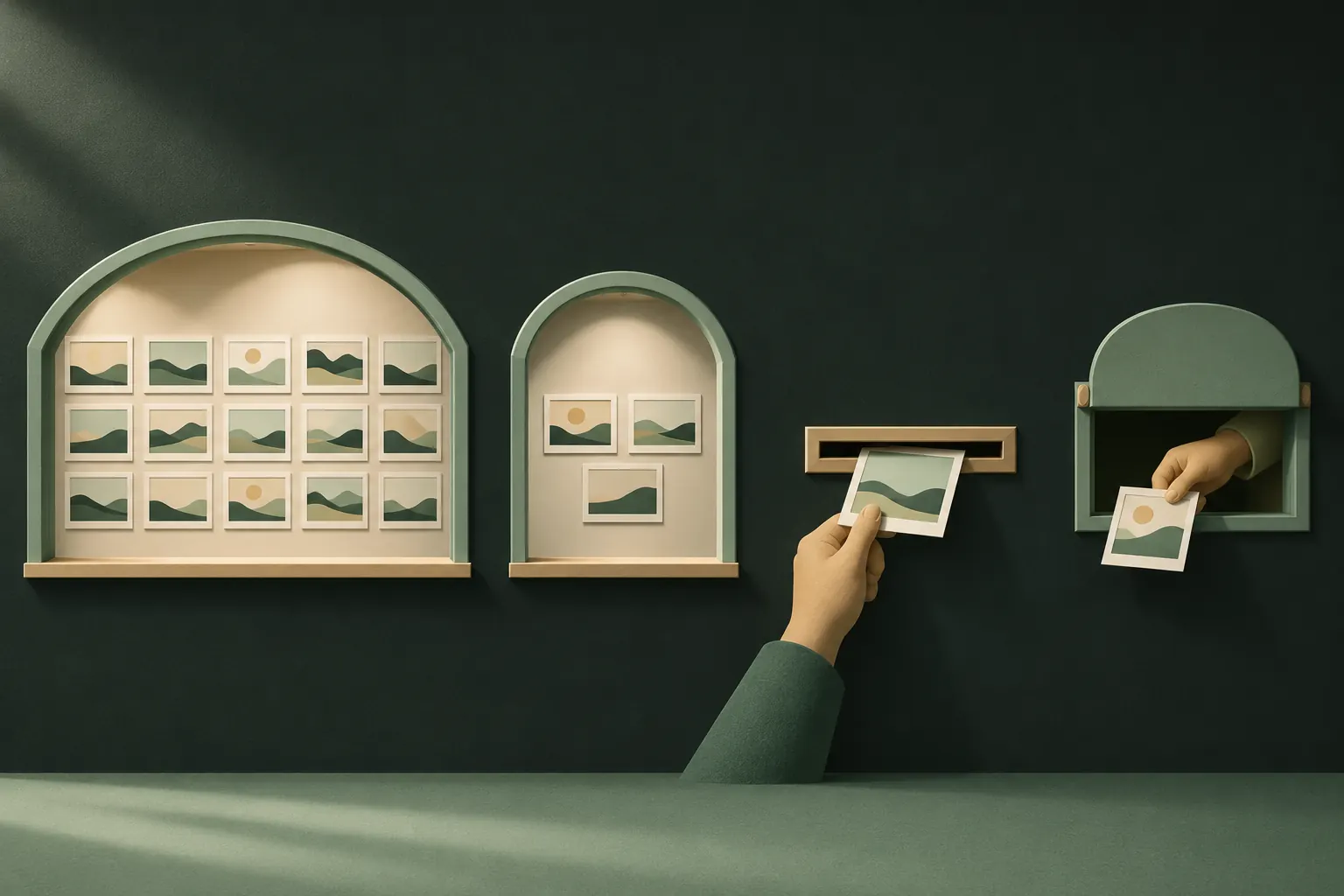
There are really four ways an app can get your photos, from most to least exposure.
- Full Access. The app can read your entire library: every photo, video and album, now and in the future, along with metadata like date and location.
- Limited Access. The app sees only the items you picked for it. New photos you take aren't included unless you add them. You can edit the selection from the app's entry in Settings.
- Add Photos Only. The app can save new pictures into your library but can't read what's already there. You'll see this for apps that only export images.
- The system photo picker (no permission at all). Many apps don't ask for library access. When you tap "Choose photo", iOS shows its own picker, running separately from the app. The app only receives the items you select. Apple's developer documentation says apps using this picker don't need to request photo library permission.
If an app works fine with the picker, it doesn't need anything more. When an app insists on Full Access for something the picker could do, ask yourself why.
What an app with Full Access can read
Full Access is broader than "it can see my pictures".
- Location. Photos taken with Location Services on carry GPS coordinates. An app with Full Access can read them for your whole library, which can reveal your home, workplace and travel history. See how to remove location from iPhone photos.
- Dates and devices. When every photo was taken and with what.
- Everything new. Access doesn't stop at today; photos you take tomorrow are included.
- Hidden photos. The Hidden album keeps pictures out of your main library view and locks the album in Photos, but it's still part of the same photo library. Don't treat Hidden as a wall against apps you've given Full Access. More on what Hidden does and doesn't do in who can see hidden photos.
None of this means apps with Full Access are misusing it. It means you're trusting them with everything, so it's worth being choosy.
Apps that don't need access at all
Some useful rules of thumb:
- Messaging and social apps usually work with Limited Access or the picker. You pick what to send.
- Shopping, banking and delivery apps that occasionally need a photo (a receipt, a document) are fine with None plus the picker or the camera.
- Games and utilities rarely need your photos. Set them to None.
- Backup apps and photo editors that organise your whole library are the main legitimate reason for Full Access. Use one you trust, not five.
Changing an app to None or Limited Access rarely breaks anything. If an app really needs more, it will ask again, and you can decide in context.
Signs an app wants more than it needs
A few patterns are worth noticing when an app asks for photos:
- It asks at first launch, before you've tried to do anything with a photo. Good apps ask in context, when you tap "add photo".
- It refuses to work with Limited Access for a task where you pick one picture, like a profile photo.
- It offers a "backup" or "cleanup" feature you didn't come for, which needs your whole library.
- Its App Store privacy label lists "Photos or Videos" under data collected. That means content can leave your phone.
None of these proves bad intent, but each is a reason to choose Limited Access or None and see if the app still does what you need.
On a child's or shared iPhone
If you set up an iPhone for a child, the same list applies, and it matters more: kids tap "Allow" to get past prompts. Check Settings → Privacy & Security → Photos on their device too. With Screen Time content and privacy restrictions, you can stop those privacy settings being changed without the Screen Time passcode.
Review it every few months
Permissions pile up. A quick routine:
- Go through Settings → Privacy & Security → Photos and downgrade anything you don't actively use.
- Delete apps you no longer use at all. Their access goes with them.
- Glance at App Privacy Report for anything unexpected.
- While you're there, check what the apps say they collect in their App Store privacy labels. Our guide on checking what data an app collects shows where to look.
Keep the most private photos outside the library
Permissions control apps. They don't help with the simple fact that everything in your photo library is one tap of "Allow Full Access" away from a new app, a mistaken permission or a shared device.
For the handful of photos that should never be in that pool, the cleanest fix is to take them out of the library altogether and keep them encrypted somewhere no photo permission reaches.
Quick answers
- "Selected Photos" vs "Limited Access"? Same idea; Apple has renamed it over the years.
- Does turning access off delete anything? No. It only stops the app reading your library from now on. Copies the app already uploaded stay wherever they went.
- What about the camera? Camera access is separate. An app can take new photos without reading your library, and vice versa.
Questions
Does Full Access include hidden photos?
Don't count on hiding to keep a photo from an app with Full Access. The Hidden album is a view in Photos, not a separate, encrypted store.
What is Limited Access?
The app sees only the photos and videos you selected for it. You can change the selection any time in Settings → Privacy & Security → Photos.
Can an app upload my photos in the background?
An app with Full Access can read your library whenever it runs, and iOS doesn't show each read. Give Full Access only to apps you trust with everything.
Does Private Vault need full photo access?
No. It imports through the system photo picker, which needs no permission. It asks for library access only when you choose to delete the originals.
Keep it private on your iPhone
No account. No analytics. Encrypted on your iPhone.